






What's new in Microsoft 365 Copilot | January Edition


.avif)

Explore What's New and Improved in Microsoft 365 Copilot This January
Welcome to Flotek’s monthly Copilot update, your clear guide to the latest features shaping the way teams work across Microsoft 365.
As we get into a new year, Copilot continues to evolve with new capabilities designed to streamline tasks, improve productivity, and support more intuitive collaboration.
Whether you’re already using Copilot day‑to‑day or exploring what it can bring to your organisation, this month’s round‑up highlights the key updates that can help you work smarter. Here’s what’s new in Copilot this January.
User capabilities
Work IQ enhancements
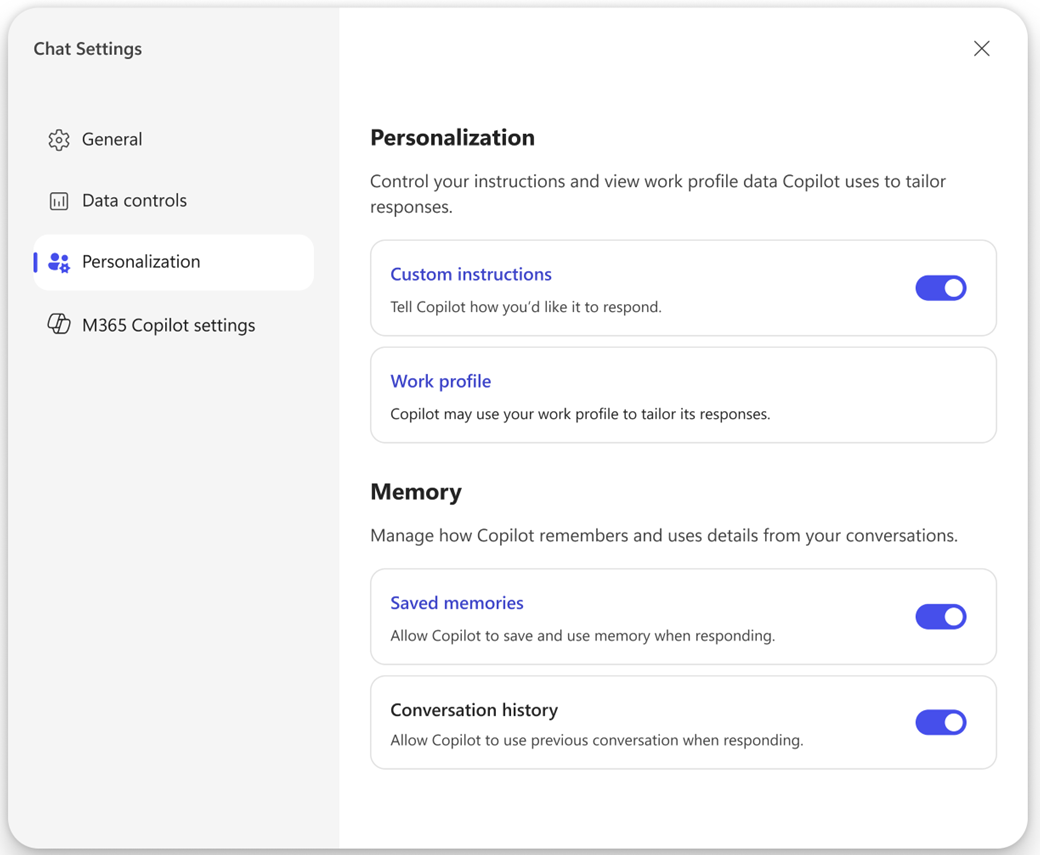
Work IQ is becoming even smarter with enhanced memory features that allow Copilot to recall information from previous conversations. These updated settings help Copilot deliver responses that are more relevant, contextual, and aligned to each user’s preferences. Users also gain clearer, easier controls to manage what Copilot remembers and how it tailors its replies.
Because this capability is part of Work IQ, the intelligence layer that helps Microsoft 365 Copilot understand each user, their role, and their organisation. It further strengthens Copilot’s ability to personalise and adapt to the way every individual works.
• Why it matters: Delivers more personalised, context‑aware responses based on remembered preferences and past interactions.
Improvements to quality and agent performance in Copilot Chat
Declarative Agents Now Understand Images in Documents
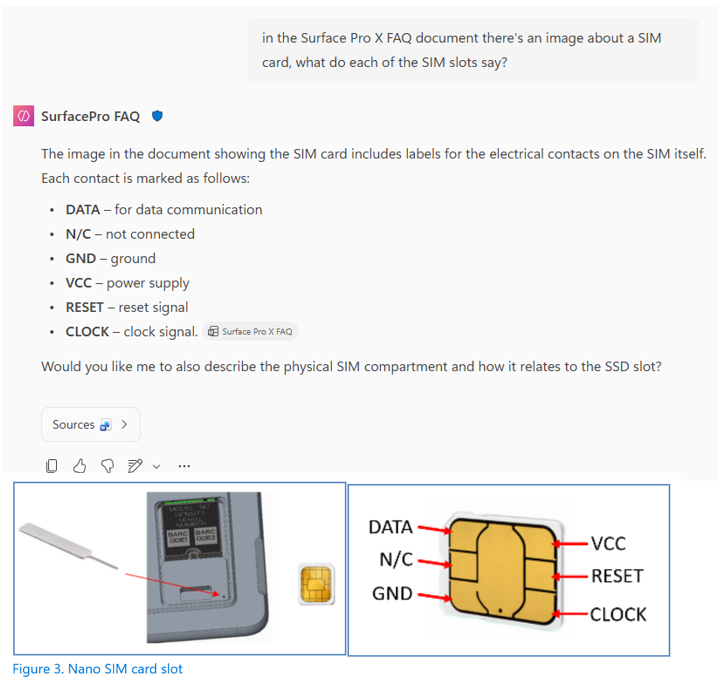
Declarative Agents are becoming more capable with the ability to interpret and ground responses using images embedded in files such as Word documents, PowerPoint presentations, and PDFs.
This includes visuals like charts, diagrams, illustrations, and screenshots. By combining both textual and visual understanding, the agent can extract deeper insights and deliver more comprehensive, contextually accurate responses, especially useful for complex queries that rely on graphical information.
• Why it matters: Provides richer, more accurate answers by analysing both written content and visual elements within documents.
Custom Agents Can Now Generate Word, Excel, and PowerPoint Content
Agents built with Microsoft 365 Copilot’s Agent Builder can now create content directly in Word, Excel, and PowerPoint.
Previously known as Code Interpreter, this capability expands the agent skillset to include generating documents, charts, and code. Helping users complete common tasks more quickly and efficiently. First introduced in October, these creation tools are now being extended to custom agents, bringing the same powerful functionality to tAilored workflows.
• Why it matters: Enables custom agents to produce documents and visual content, speeding up everyday tasks and improving workflow efficiency.
.png)
Updated navigation and search capabilities in the Microsoft 365 Copilot app
A Simpler, More Intuitive Copilot App Navigation
The Microsoft 365 Copilot app now features a cleaner, more intuitive navigation experience, making it easier for users to find what they need and get more value from Ai.
The updated navigation pane includes an expanded chat history, chat search, and a larger list of recent Notebooks, helping users pick up work right where they left off.
A new Library view brings all Copilot‑generated content, such as images and Pages, into one central location. Meanwhile, the new Frontier tab provides quick access to the latest frontier experiences, including Opal and agent experiences across Word, Excel, and PowerPoint.
• Why it matters: Makes it easier to find past work and access new Ai experiences through a more streamlined navigation layout.
.png)
Glance Cards in Copilot Search Now AvAilable to All Copilot Users
Now avAilable even for users without a Microsoft 365 Copilot licence, Glance Cards offer quick, contextual insights right where people work. The cards surface helpful details, such as recent documents, upcoming meetings, and relevant actions, without requiring a full search.
By providing at‑a‑glance context in the flow of work, Glance Cards simplify decision‑making, reduce time spent navigating across apps, and help keep productivity front and centre.
• Why it matters: Delivers fast, context‑rich insights without needing a full Copilot licence or running a complete search.
.png)
Copilot Conversations Now Integrated into Copilot Search
Copilot conversations are now surfaced directly within Copilot Search results, making it easier to revisit and reuse past interactions.
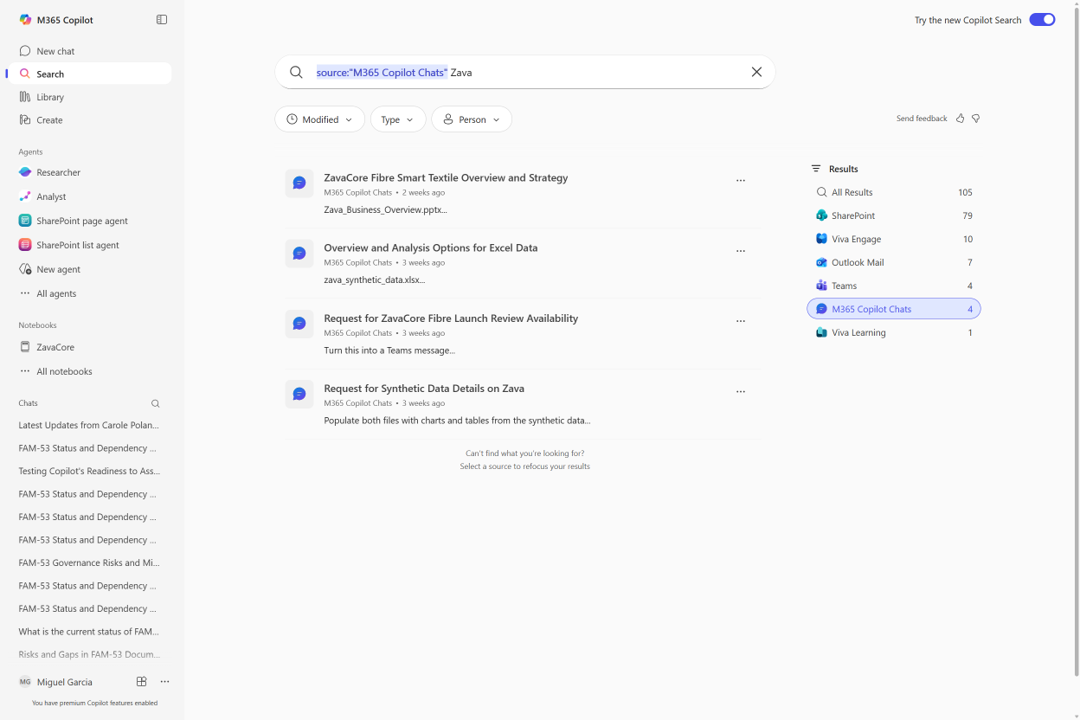
Users can retrieve previous Copilot chats, including those from notebooks, agents, and the mAin Copilot interface without leaving the search experience.
A new ‘Copilot Chats’ data source appears in the right rail, allowing users to run scoped searches focused specifically on Copilot‑generated content.
When selected, the search box automatically provides tailored suggestions to help distinguish between recalling past sessions and creating new prompts, ensuring search results align with user intent.
• Why it matters: Makes past Copilot interactions easier to find and reuse through dedicated, context‑aware search filtering.
Smarter, Dynamic Filters in Microsoft 365 Copilot Search
Microsoft 365 Copilot Search now includes dynamic, data‑source‑specific filters that make it easier to refine results with precision.
When users begin typing filters such as ‘person:’ or ‘source:’, Copilot automatically offers smart suggestions to help complete the prompt and narrow the search.
Selecting a specific person or data source updates the suggestions so that Copilot only displays options relevant to that choice. This allows users to target exactly what they’re looking for more quickly and with far less manual filtering.
• Why it matters: Helps users find the right information faster with intelligent, context‑aware search filters.

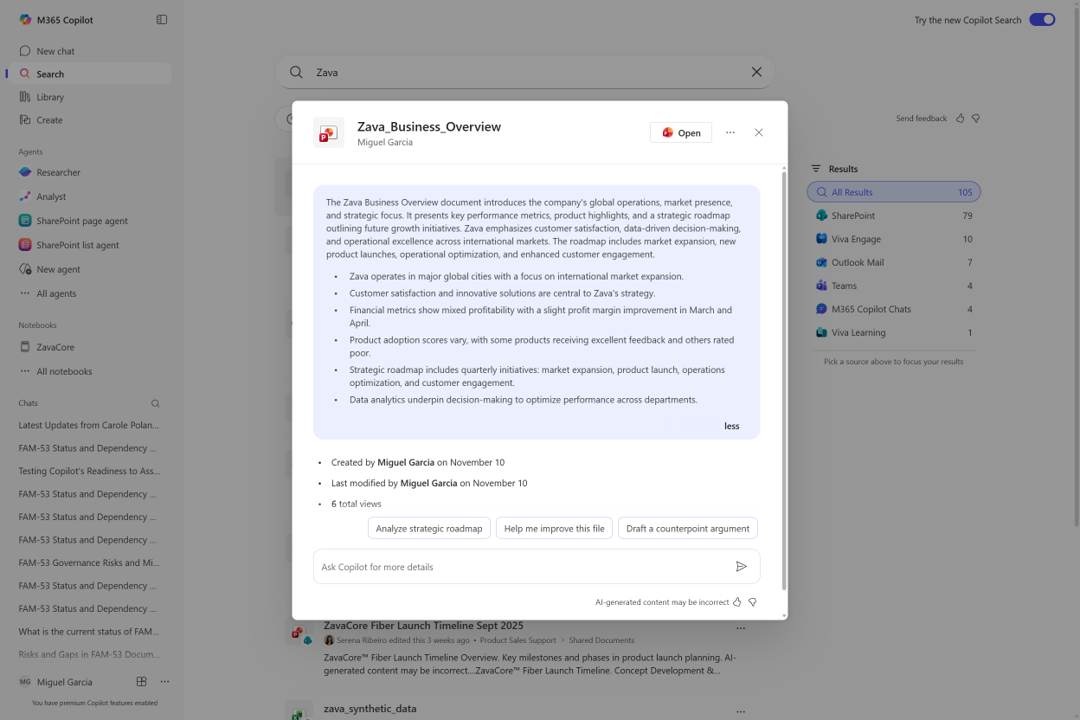
Ai Views in Copilot Search Results Now Deliver Richer, Context-aware Summaries
By incorporating relevant metadata, related resources, and suggested actions, Ai views in Copilot search results help users quickly gauge a result’s relevance without opening the underlying file or message. This capability extends across a broader range of Microsoft 365 apps and major third-party platforms, making Ai View a powerful tool for diverse enterprise scenarios.
Copilot Notebooks Coming to OneNote
Copilot Notebooks is coming to OneNote, bringing together OneNote’s strength as a central hub for organising notes, files, images, recordings, and more with targeted Ai assistance.
Users can gather all their project materials in one place, and Copilot will ground its insights, updates, and suggestions in that unified content.
The result is a more powerful, context‑rich workspace where organisation and Ai work hand‑in‑hand—reducing app‑switching, improving clarity, and helping teams move projects forward with smarter, more connected collaboration.
• Why it matters: Creates a unified, Ai‑enhanced workspace by combining organised content with context‑aware assistance.
.png)
Unified experience, Entra authentication, agent update, and more for Copilot in Teams
A Unified Copilot Experience Across Teams
The Copilot experience in Teams is now fully unified across chats, channels, and meetings, aligning with the look and feel of the Microsoft 365 Copilot app.
Beyond the refreshed interface, Copilot can analyse chat history, meeting transcripts, and calendar information to provide smart recaps, rewrite messages, and surface relevant insights.
Whether you’re reviewing a long thread or following up after a call, Copilot delivers context‑aware summaries and tailored suggestions based on your activity and goals, helping you stay on top of conversations and keep work moving.
• Why it matters: Provides consistent, context‑aware insights across chats, channels, and meetings to support smoother workflows.
.png)
New Enhancements to Channel Agent
Channel Agent has been upgraded to act as an even stronger domain expert for each team by drawing on conversations, files, and meetings within the channel.
%20(1).gif)
Status Report Updates
Users can quickly request updates by @‑mentioning the agent with prompts like “create a status report.” Channel Agent now posts status reports directly into the channel, making progress visible to everyone and helping teams stay aligned.
Workback Plans
Users can share an objective and deadline with the agent, and it will automatically generate a sequenced list of tasks with clear due dates. The plan can be reviewed and adjusted before tasks are added to Planner, making structured project planning simpler, more accurate, and more collaborative.
• Why it matters: Helps teams plan, track, and communicate progress more effectively with automated status reports and intelligent workback planning.
New Enhancements to Facilitator in Meetings
Facilitator helps meetings stay focused, productive, and on track. A new wave of features now brings richer context awareness and more proactive support, allowing teams to move faster without juggling extra tools. Here’s what’s new:
Agenda Recognition from Meeting Chat
Facilitator can now detect an agenda shared directly in the meeting chat, alongside agendas in the invite and meeting notes. Once identified, it automatically builds a live progress tracker at the top of the meeting, giving everyone a clear view of what’s been covered and what’s still ahead.
Smart Participant Nudges
If someone is invited to a meeting but hasn’t joined and their name is mentioned twice in conversation, Facilitator will politely ping them in chat, prompting them to hop in. This helps ensure the right people are brought into the discussion at the right moment.
Document Drafting from Meeting Discussions
Facilitator can draft documents in Word or Loop based on the content of the conversation. Whether you need a blog, whitepaper, or project brief, Facilitator shapes the document to the required format, helping ideas turn into action faster.
Automatic Task Capture and Assignment
As tasks come up in the meeting, Facilitator can capture and assign them automatically. Users can also direct it through chat to add, update, or reassign tasks, keeping follow‑up organised without breaking the flow of discussion.
• Why it matters: Helps meetings move smoothly with automated agendas, document creation, participant prompts, and intelligent task management.
Customisable Meeting Recap Templates
New customisable meeting recap templates let users tAilor Ai‑generated notes to match exactly how their team works. Two ready‑made options are avAilable: a Speaker Summary, which organises insights by participant, and an Executive Summary, which highlights key takeaways at a glance.
For teams with their own preferred structure, users can create custom templates using a simple free‑text prompt, whether that’s describing the format they want or pasting in an existing layout. Copilot will instantly adapt the recap to match. Custom templates can also be saved for future use, giving every meeting the same level of clarity, consistency, and efficiency.
• Why it matters: Delivers clearer, more consistent meeting output with templates that match each team’s preferred working style.
Formula completion and Agent Mode in Excel
Formula Completion in Excel
Formula completion in Excel streamlines the process of writing formulas by proactively suggesting and autocompleting options as soon as users type ‘=‘. Copilot analyses the worksheet’s context, including headers, nearby cells, and tables, to provide accurate, real‑time suggestions that speed up formula creation and increase confidence.
By reducing manual typing and minimising errors, formula completion helps users spend less time worrying about syntax and more time uncovering insights from their data.
• Why it matters: Speeds up formula creation with intelligent, context‑aware suggestions that reduce errors and save time.
.gif)
Agent Mode in Excel
Agent Mode in Excel can now plan, execute, and validate multi‑step tasks, such as building models, reshaping tables, and creating charts, directly within the grid. Users stay fully in control, with transparent step‑by‑step actions and editable outputs, making complex workflows faster, clearer, and far more intuitive.
• Why it matters: Accelerates multi‑step data tasks with guided, transparent actions delivered directly in the Excel grid.
Explanations and Image Editing in Copilot for PowerPoint
Copilot in PowerPoint now includes an ‘Explain this’ feature, allowing users to select an acronym, text box, table, or even an entire slide and instantly receive a clear, contextual explanation of the chosen content. By breaking down complex information into easy‑to‑understand insights, this feature reduces confusion and helps users get up to speed quickly.
These enhancements make it easier to interpret detailed slides, understand unfamiliar terms, and work more confidently with existing content, all without breaking the flow of editing or presenting.
• Why it matters: Helps users quickly understand complex slide content with on‑demand, context‑aware explanations.
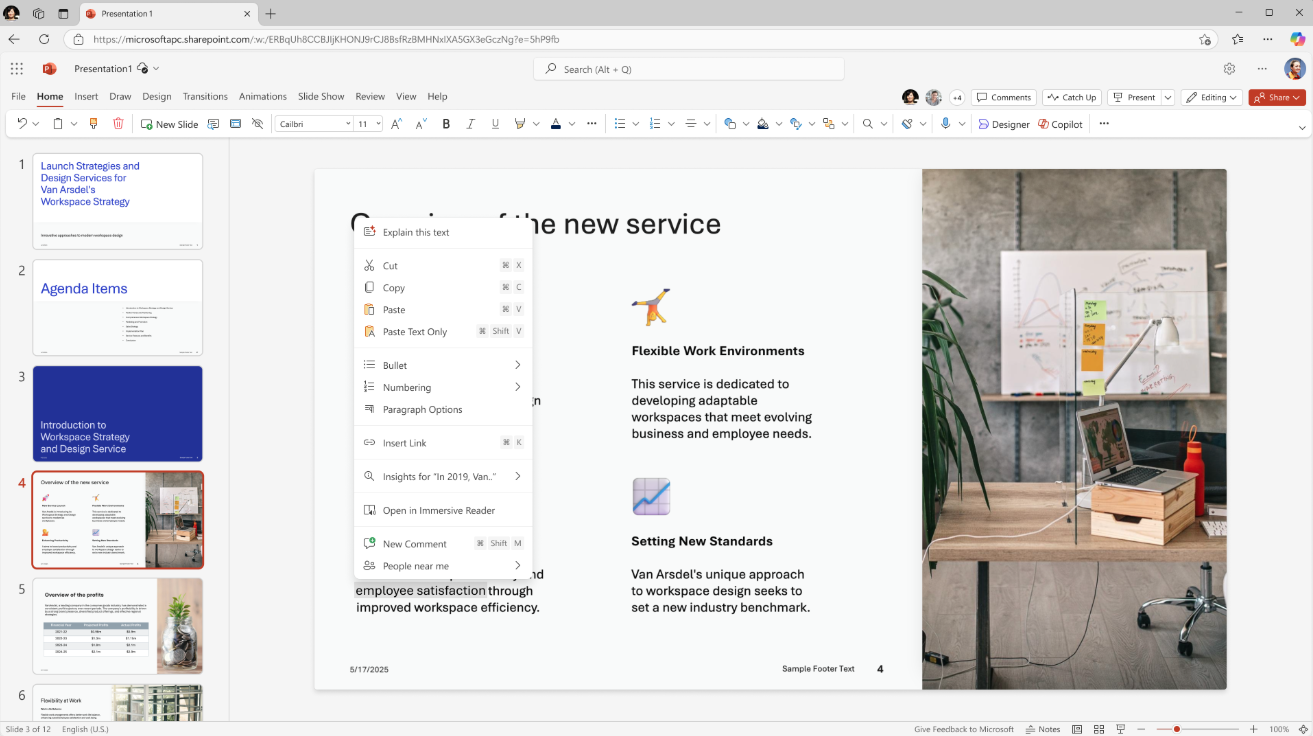
Image Editor Integration in PowerPoint
PowerPoint now includes a built‑in image editor, allowing users to edit images directly within their slides using a modern, intuitive interface, without switching apps or breaking their workflow.
With powerful editing tools available right inside PowerPoint, users can quickly refine visuals, enhance marketing materials, or improve the overall look and feel of their presentations.
Whether it’s adjusting colours, cropping, or sharpening an image, these edits can be made seamlessly in‑app, saving time and helping teams create polished, professional slides with ease.
• Why it matters: Streamlines visual editing by bringing modern image‑editing tools directly into PowerPoint.
.png)
Organisation Images in PowerPoint
PowerPoint now includes Organisation Images, an integrated asset library that connects directly to your organisation’s approved image sources.
Users can quickly find and insert company‑approved visuals, such as logos, icons, and photography, right from within PowerPoint.
By going to Insert > Pictures, users will now see a new ‘Organisation Images’ option in the drop‑down menu. This provides instant access to a curated library of brand‑approved assets, helping teams create professional, consistent presentations without needing to search external folders or request files from colleagues.
• Why it matters: Ensures brand consistency and speeds up slide creation with a built‑in library of approved organisational visuals.
.png)
Agent Mode in Word
Agent Mode in Word transforms document creation into an interactive, conversational experience. Users simply tell Copilot what they need, such as ‘summarise recent customer feedback and highlight key trends’, and Copilot does the heavy lifting: sourcing relevant content, drafting text, suggesting improvements, and asking clarifying questions along the way.
The process feels more like a dialogue than a traditional writing task. Users focus on intent, while Copilot brings it to life using Word’s native styles and clean formatting. With faster iteration, richer ideas, and a more engaging writing flow, Agent Mode makes creating polished documents quicker and more intuitive.
• Why it matters: Turns document creation into a guided, conversational experience for faster, clearer writing.
.png)
Need help navigating the latest enhancements to Copilot?
The latest updates in Microsoft Copilot bring a host of new features designed to enhance productivity, streamline communication, and provide a more personalised experience. With improvements in chat and collaboration, Copilot continues to evolve as a powerful tool for seamless and efficient communication.
Get More from Microsoft 365
Ready to explore more about Microsoft 365? Explore more ways to unlock the full power of your suite:
Introducing Microsoft Copilot for Finance





.jpg)







Schedule a Free IT Audit & Cost Breakdown

Download ‘Your First 60 Days with Microsoft Copilot’ Guide
%20amended%20logo.png)
%20Dan.png)
%20Ai%20for%20small%20businesses.png)
%20Audit.png)
zzzzzzp.png)
zzzzzz.png)

.avif)
.avif)
%20(1).avif)
.avif)