


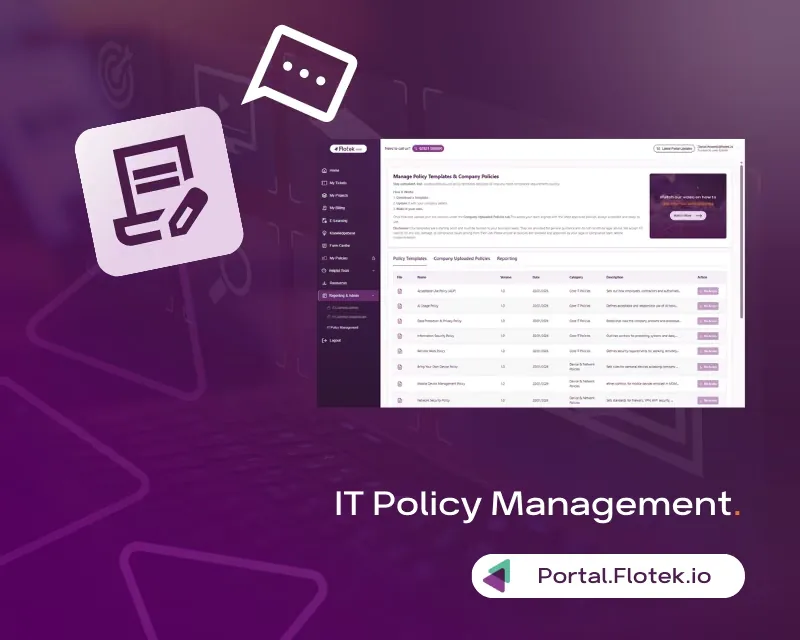
IT Policy Manager | Smarter Policy Control



.avif)

IT Policy Manager built to remove the admin from policy work
Keeping IT policies up to date is one of those jobs that feels 'important but never urgent'… until it is urgent.
A security incident, a leaver dispute, an audit request, a customer questionnaire. Suddenly you need proof, clarity, and consistency, fast.
That is why we have launched IT Policy Manager: a simple way for partners to manage IT policies properly, without hunting through old documents, duplicated versions, or 'I think that's the latest one' email chains. It is available directly through the Flotek Partner Portal.
Why it's needed
Most businesses end up with policies spread across:
• Old Word documents on shared drives
• Half-updated templates copied from somewhere years ago
• Policies that exist 'in theory', but were never rolled out
There's often no clear owner, no version control, no evidence staff have read them, and we all know how important it is to have policies signed, especially if you're ISO audited.
All of that is risky, and also inefficient.
IT Policy Manager helps you get control back: standardise what 'good' looks like, keep it current, and make it easier to prove what was in place at any point in time.
What IT Policy Manager helps you do
IT Policy Manager is built to help you:
• Create and maintain policies in one place (so the latest version is always obvious)
• Roll policies out consistently across teams, sites, or users
• Reduce risk by keeping key policies current and visible
• Save time compared to manually managing documents, approvals, and re-sends
• Support onboarding and culture by making expectations clear from day one
Who gets it, and what it costs
IT Policy Manager has been added this week for all partners with Flo360+, at no extra charge.
If you are on a Flo Protect+ plan, IT Policy Manager is £3 per user.
If you are not sure which plan you are on, please get in touch and we will confirm in seconds, then help you get it switched on.
How to get started
1. Speak to your Account Manager (or contact the team) to enable IT Policy Manager
2. Confirm how many users you want covered
3. Start with your 'must-have' policies (we usually recommend the ones that protect you quickest)
Suggested starter set:
• Acceptable Use (devices, systems, internet use)
• Ai Usage Policy
• Data Protection & Privacy Policy
• Information Security Policy
Keeping software patched is another important layer alongside good policies, read about Flotek's Advanced Software Management, which automatically updates 397+ applications for Flo360+ partners.
Watch the walkthrough
Here is the short video overview, showing how IT Policy Manager works in practice.
Want IT Policy Manager switched on, or want us to recommend the best policy set for your environment? Get in touch and we will get you live.
Further reading: 16 Benefits Of Microsoft 365 | What Is Microsoft Copilot
Discover how Flotek can help with our Microsoft 365 solutions. Get in touch today.
Further Reading
The Partner Portal is Live!: IT Policy Manager lives in the portal, alongside tickets, e-learning, and more.
Flotek Launches Advanced Software Management: automatic patching for 397+ apps, included in Flo360+.
A Quick Way to Raise, Track and Resolve Tickets: the portal's ticketing system makes support straightforward.
Flotek Cyber Security Solutions: policies are one layer; see the full security picture here.
Get in Touch: ready to switch on IT Policy Manager? We'll get you set up.
.jpg)













Want it fixed and kept that way? From just £14 a month, we verify your domain and monitor it 24/7, so your email lands and nobody else can send as you.













.avif)
.avif)
%20(1).avif)