
Microsoft Teams Updates | July Edition


Discover the Latest Innovations, Features, and Enhancements in Microsoft Teams You Need to Know
Great news from Microsoft! The latest updates in Microsoft Teams are here to enhance the way you chat, make phone calls, and manage your Teams rooms. These new features are designed to boost your productivity, streamline your communications, and customise your Teams experience to fit your personal needs. Flotek wants to update you. With improvements in chat and collaboration, enhanced keyboard shortcuts, and advanced code block sharing, Microsoft Teams continues to evolve as a powerful tool for seamless and efficient communication. Dive into the updates to discover how they can transform your workflow and make team interactions more effective.
Chat and Collaboration
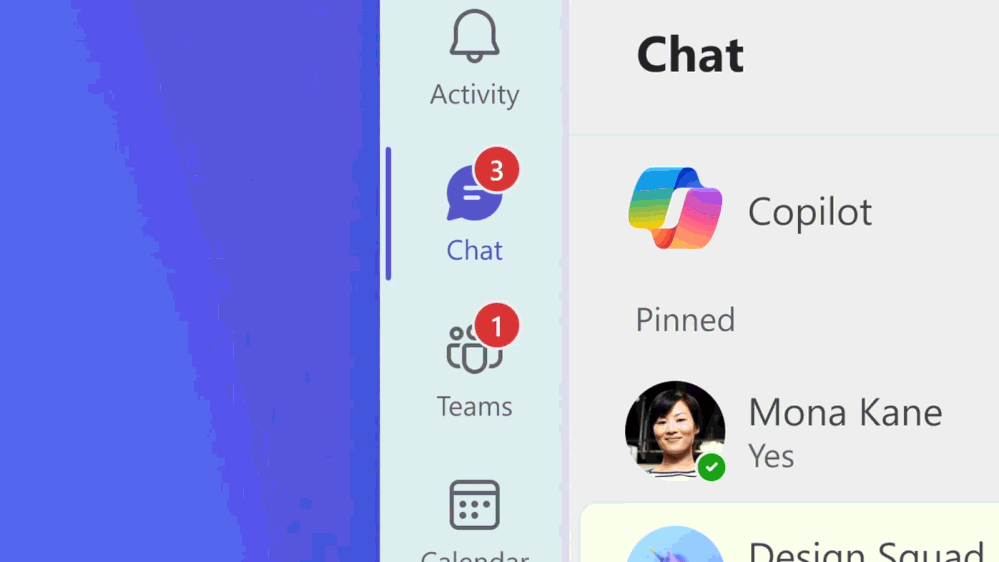
New chat and channel experience
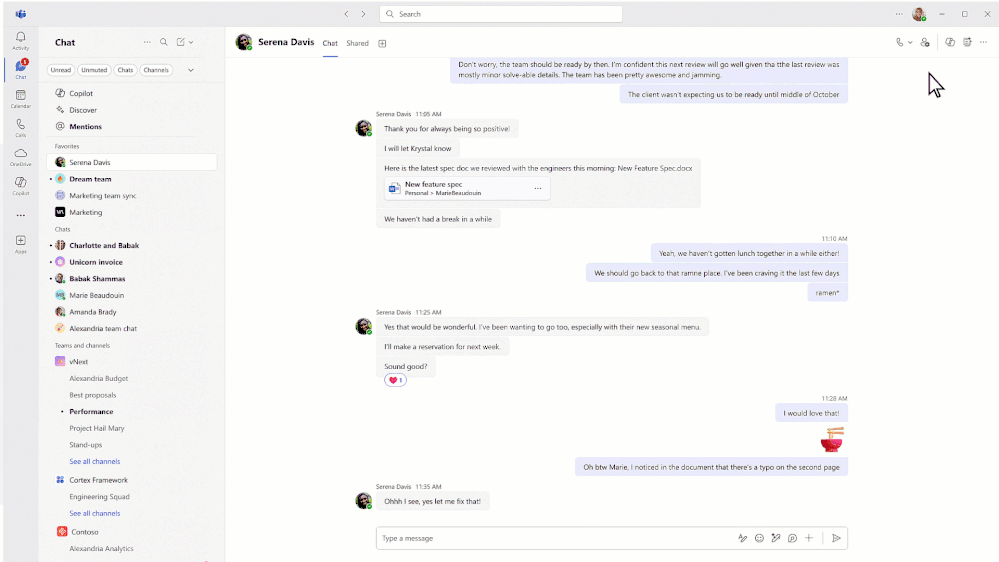
The new chat and channels experience is designed to help you collaborate more efficiently and effectively. It’s simple by default, enabling everyone to stay on top of what matters, and it’s powerful on demand, allowing you to organise information and communicate your way. Catch up on chat, channels, and teams in one place; use filters to triage messages; create custom sections to organise conversations by topics; and more.
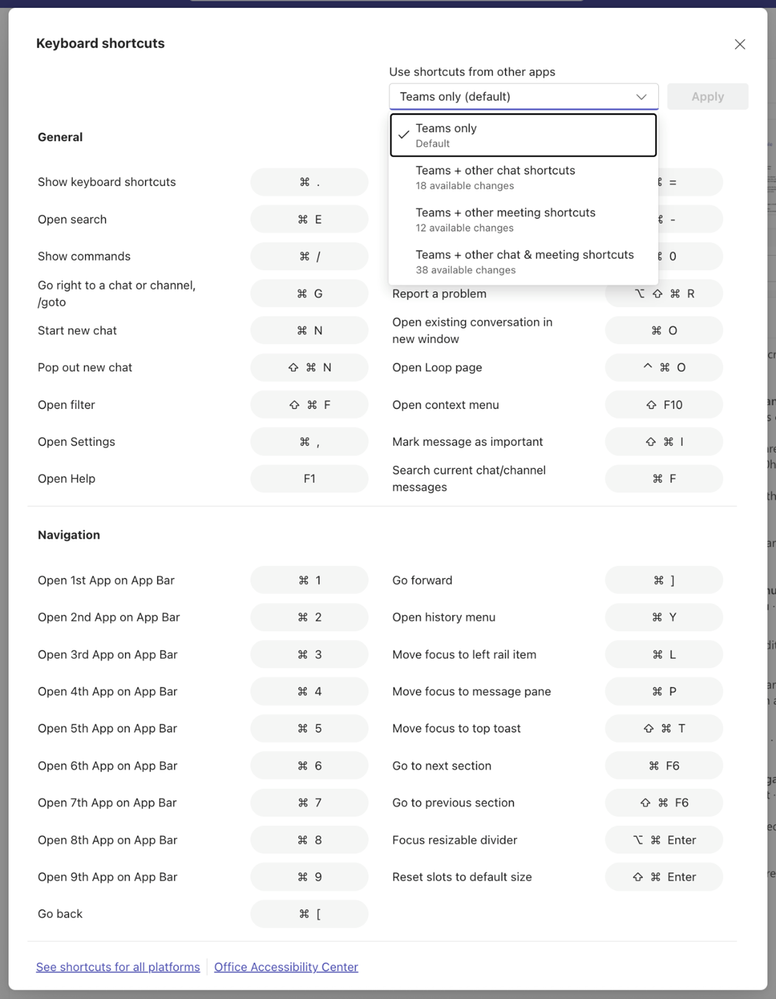
Customise your keyboard to match shortcuts from other apps
Keyboard shortcuts help you work efficiently without lifting your hands from the keyboard. Now you can apply the same shortcuts you are accustomed to from other chat and meeting applications to Teams. To do this, access the keyboard shortcuts dialogue from the ellipsis in Teams top bar-> Keyboard shortcuts. Then, at the top right you can select keyboard shortcut from other apps from the drop-down menu.
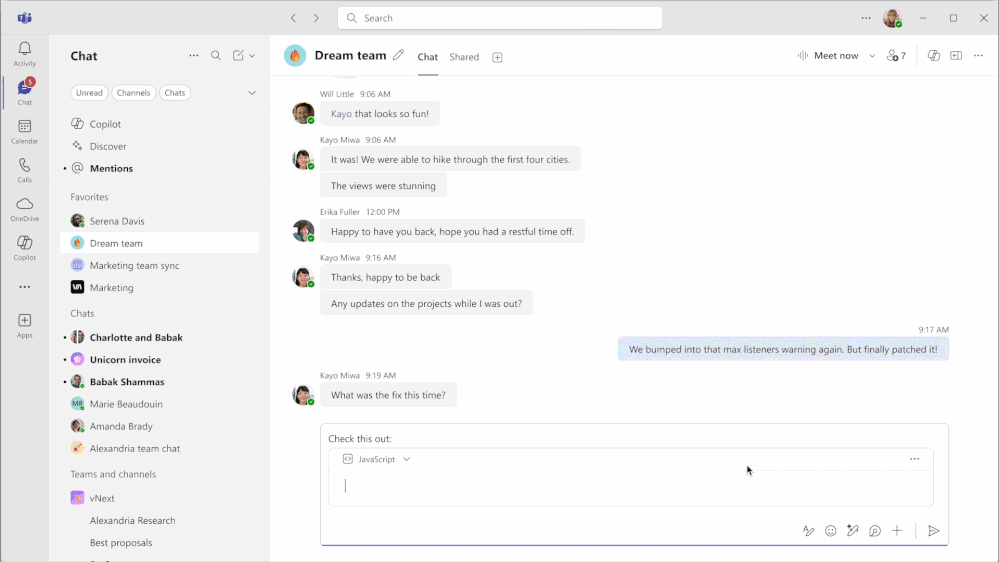
Improvements in code block sharing
Over the past year, code blocks sharing has been enhanced. When you type or paste code, it defaults to your last-used language, allows quick creation with shortcuts or slash commands, and support seamless copy-paste. Improved readability with fixed sizing, scrolling, and word wrap ensures a better viewing experience, along with expanded support for more programming languages.
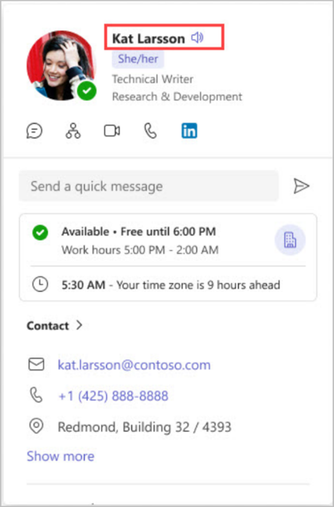
Name pronunciation
You can now record and share the correct pronunciation of your name, fostering inclusivity and ensuring colleagues pronounce names accurately. Simply open your profile card to make a recording. This recording will be accessible on your profile card to individuals at your workplace or school using Microsoft 365. With a single click, you can listen to your colleagues' name pronunciations.
Resize Teams windows and panes
Teams now offers more options to arrange your Teams app window across your screen real estate, allowing you to keep your communication in context, tailoring it to your needs.
- Resize Teams app: snap and resize the Teams app with Windows 11. Snap layouts to efficiently multitask by viewing multiple applications side by side. You can snap the Teams app to one of the different layouts, keeping it visible alongside other apps.
- Resize Teams panes: adjust the size of your Teams panes to prioritise what is currently most important to you, and Teams' fluid experience will instantly adapt to fit the new layout. For instance, you can expand the meeting chat pane during a meeting. Simply hover over the edge of the chat, channels, meetings, or activity panes, and drag the arrows to resize the panes.
- Zoom levels: Teams now offers additional zoom levels to help you find the size that works best for you. Whether you're using a 6k display or have low vision and need larger text, icons, and controls, you can zoom in without sacrificing functionality or needing to scroll in two directions to read the text.
Share a file (forward) in chat
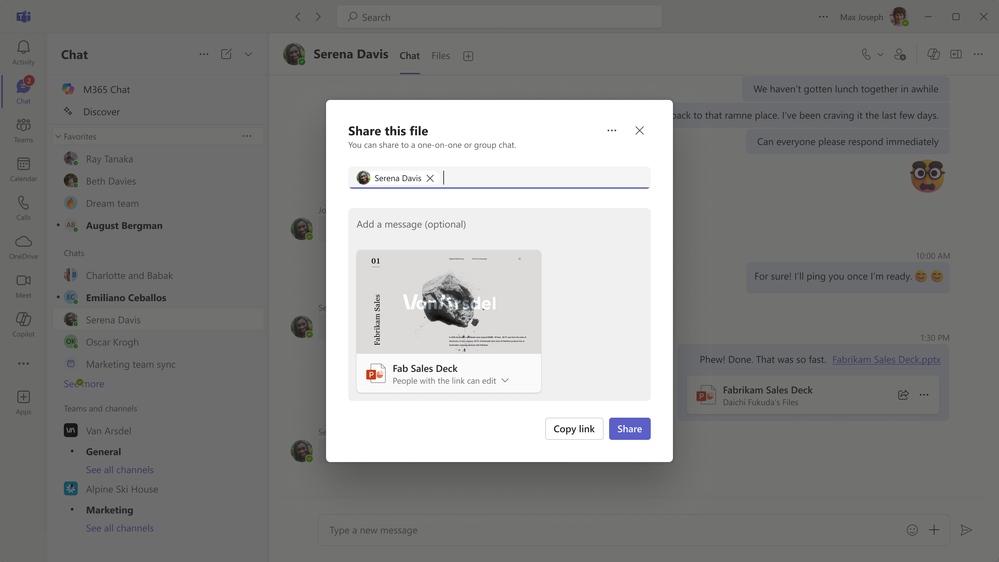
You can now directly share a file from chat or channel conversations to other chats or channels, making sharing easier with fewer clicks. To share a file, select the file’s ‘share’ icon. You can add additional content to the message to provide context and clarity for the recipient. You can share in 1:1 chats, group chats, or channels.
Search keywords for standard emojis
Emoji and reaction search is now more intuitive than ever! Users can search any terms related to the emoji they're looking for to find related results across thousands of standard emoji.
Meetings, Webinars, and Town halls
Real-time text available in Teams meetings and calls
Real-time text (RTT) is an accessibility feature in Microsoft Teams that allows text to be transmitted instantly, character by character, as it’s typed, without needing to press "send." This enables more immediate and natural conversation, particularly benefiting users who are deaf, hard of hearing, or have speech or cognitive disabilities. In 1:1 calls and meetings, RTT appears in the same pane as Live Captions, creating a unified communication stream where spoken and typed input coexist. This integration reduces the need to switch between interfaces and supports mixed-modality conversations, such as when one participant speaks and the other uses RTT to respond. By preserving conversational flow and reducing cognitive load, RTT helps ensure more accessible, inclusive, and equitable communication for all participants. This is available for Teams on desktop, web, and mobile (iOS and Android).
Control shared content in ‘Manage what attendees see’ before sending it live
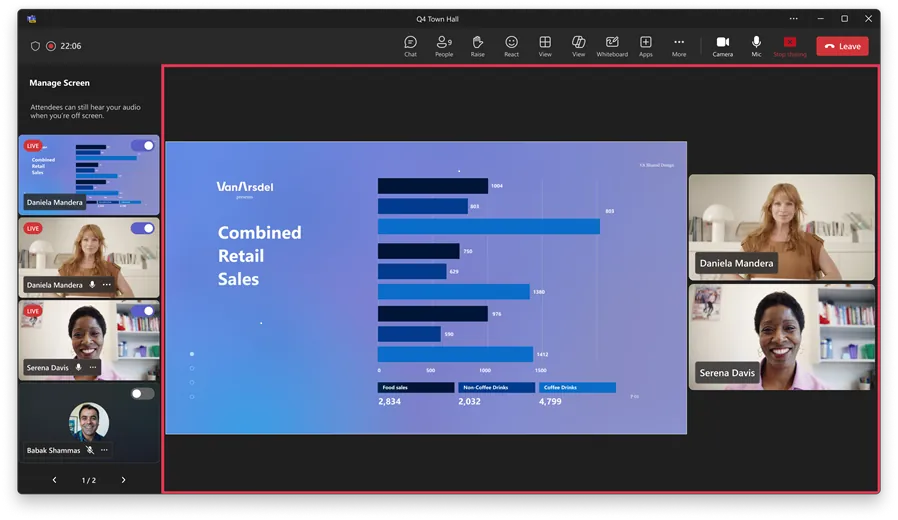
The "Manage what attendees see" feature in meetings, town halls, and webinars helps organisers deliver polished events more easily by simplifying the attendee view and keeping the focus on participants who have been brought on screen. An enhancement to the 'Manage what attendees see' feature allows organisers, co-organisers, and presenters to control when shared content is made visible to attendees. This ensures smooth transitions and prevents unintended screen sharing.
Teams Phone
Delayed simultaneous ring for GCC-High and DoD Clouds
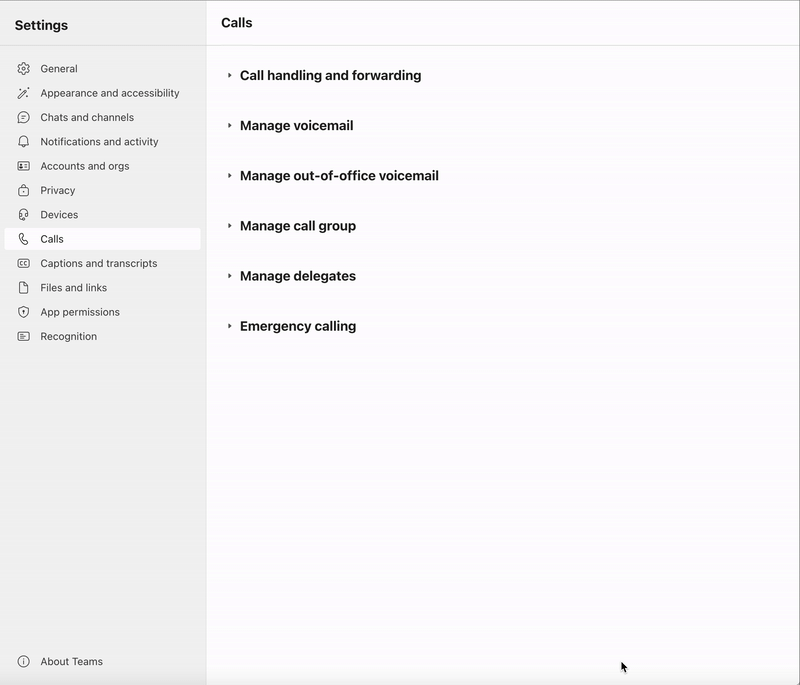
For teams with shared call responsibilities, delayed simultaneous ring will ensure calls configure the intended recipient first, instead of notifying everyone the moment a call comes in. This helps reduce noise and minimise distractions, especially for roles like delegates and customer service teams.
Peripherals: Teams button support across multiple connected peripheral devices: Available in public preview
You can now use the Teams button across peripheral devices without having to manually select a specific device in the Teams devices settings. This ensures a more seamless experience navigating across multiple certified for Microsoft Teams personal peripheral USB devices (with a wire or a dongle) connected to the same host device (such as your laptop). For example, you can use the Teams button on headset A to bring up the meeting pre-join screen, then use the Teams button on headset B to join the meeting, and then use the Teams button on your connected speakerphone to raise your hand in the meeting, etc.
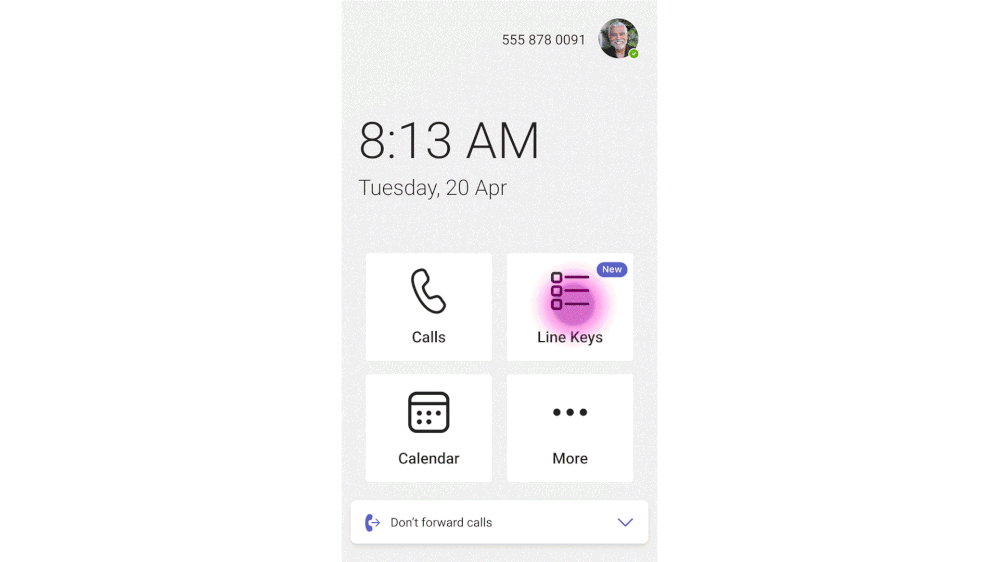
Phone devices: Line key support for shared line and call transfers
This feature will enable you to assign shared lines to a line key and view the boss and delegates of the line along with their presence on Teams Phone devices with touch screens. This feature allows delegates to pick up calls on behalf of the boss by pressing the line key and join active calls. Additionally, users will be able to assign the transfer action to the line key, enabling them to transfer active calls by simply pressing that line key.
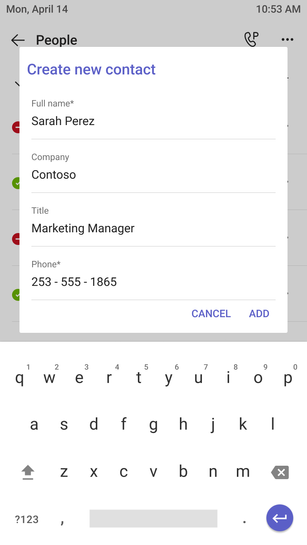
Phone devices: Add or edit external contacts
Teams Phone certified devices now support the ability to add and edit external contacts directly on the device. Previously, users had to switch to the Teams desktop app to manage external contacts. Now, you can stay in the flow of work without leaving the phone device. With just a few taps in the People app, you can enter contact details, assign them to an existing group, or create a new one, all from the convenience of your Teams Phone device. You can now also assign external contacts to line keys so that contact names are displayed instead of numbers.
Need help navigating the latest enhancements to Teams?
The latest updates in Microsoft Teams bring a host of new features designed to enhance productivity, streamline communication, and provide a more personalised experience. With improvements in chat and collaboration, enhanced keyboard shortcuts, and advanced code block sharing, Teams continues to evolve as a powerful tool for seamless and efficient communication.
Ready to Get Started?
Let’s talk. There’s no pressure. Just a smarter way to understand your tech.
Email us on sales@flotek.io or book an audit online at www.flotek.io/contact
Get More from Microsoft 365
Ready to explore more about Microsoft 365? Explore more ways to unlock the full power of your suite:
How To Use Microsoft Teams For Knowledge Management
The Best Task Management Apps In Microsoft Teams
A Guide To Adding External Users To Microsoft Teams
Further reading: Microsoft Teams Updates | October Edition | Microsoft Teams Updates | September Edition | Microsoft Teams Updates | August Edition
What's new in Microsoft Teams in July?

What is the new Teams chat and channels experience?
Can I share code in Microsoft Teams?

Schedule a Free IT Audit & Cost Breakdown


Want it fixed and kept that way? From just £14 a month, we verify your domain and monitor it 24/7, so your email lands and nobody else can send as you.