Microsoft Teams Updates | September Edition


Explore the Latest Microsoft Teams Updates You Won’t Want to Miss
The latest updates in Microsoft Teams are here to enhance the way you chat, collaborate, make calls, and manage your Teams environment. These new features are designed to boost productivity, streamline communication, and personalise your experience to fit your unique needs. Flotek wants to keep you informed. With smarter search, Copilot enhancements, emoji-triggered workflows, and powerful new tools for meetings and Teams Phone, Microsoft Teams continues to evolve as a dynamic platform for seamless and efficient teamwork.
This month, Teams introduces a fresh wave of innovation to help you work smarter and stay connected. Among the highlights, Multiple emoji reactions let you express yourself more clearly by combining emojis for richer, more nuanced responses. Custom dictionaries for Copilot give IT admins the power to tailor meeting transcripts and Intelligent Recap to reflect your organisation’s unique language. And for hybrid workers, desk booking just got smarter you can now reserve a desk directly from a map or choose one near a colleague. These updates make Teams more intuitive, personalised, and collaborative than ever.
Chat and Collaboration
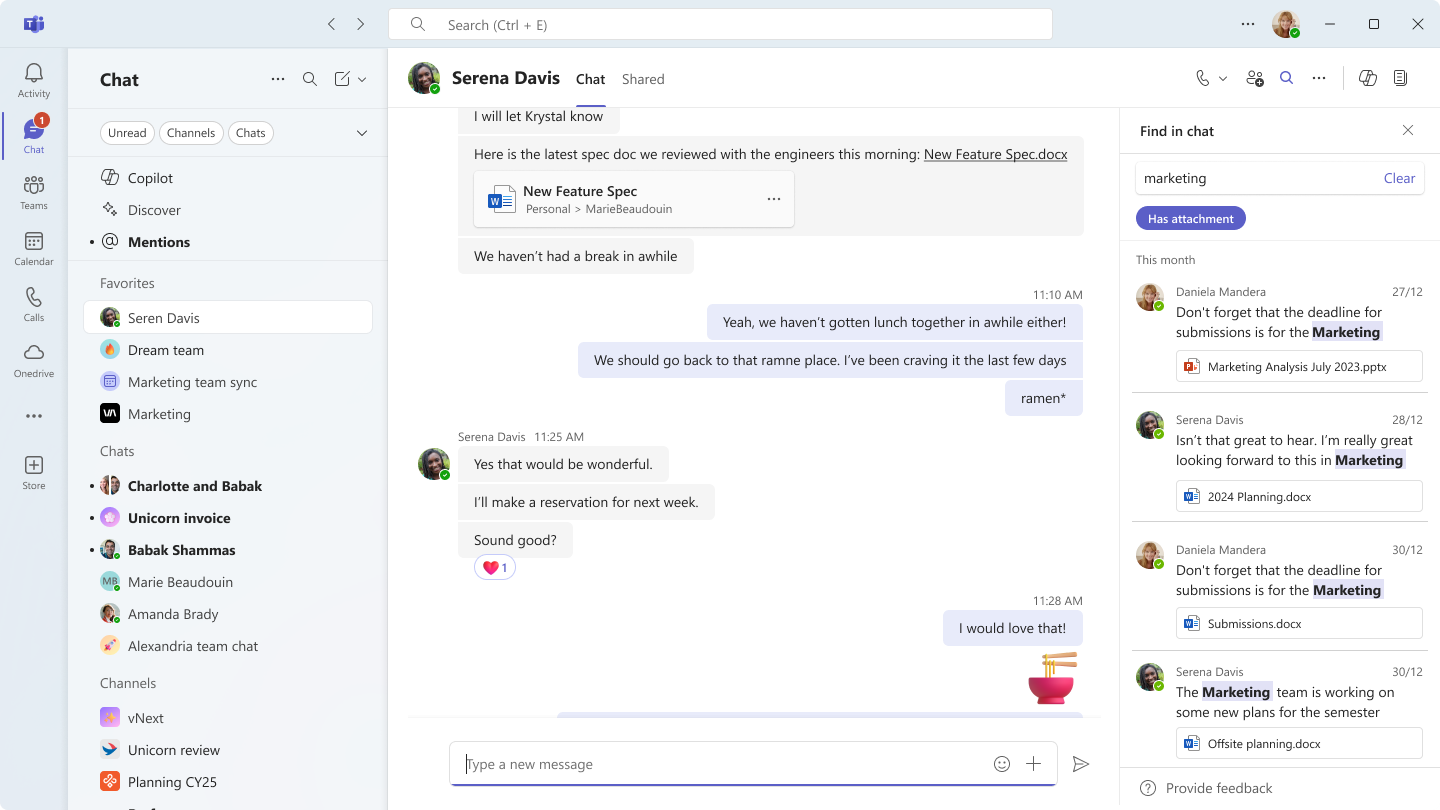
Filter for messages with files in contextual search
With the latest updates to the Find in Chat/Channel experience, you can now quickly track down documents and media without digging through endless message threads. New filters let you zero in on messages with attachments, and search results now show file cards, so you can spot shared files at a glance. These improvements make it faster and simpler to locate what you need, helping you stay focused and productive.
Search with SQL-like commands
You can now use SQL-style commands right in the search bar to quickly narrow down your results. Whether you're looking for a specific message, file, or conversation, commands like from:username or in:channel help you filter with precision. It’s a familiar, structured way to find exactly what you need, fast and hassle-free.
Keyboard Shortcuts
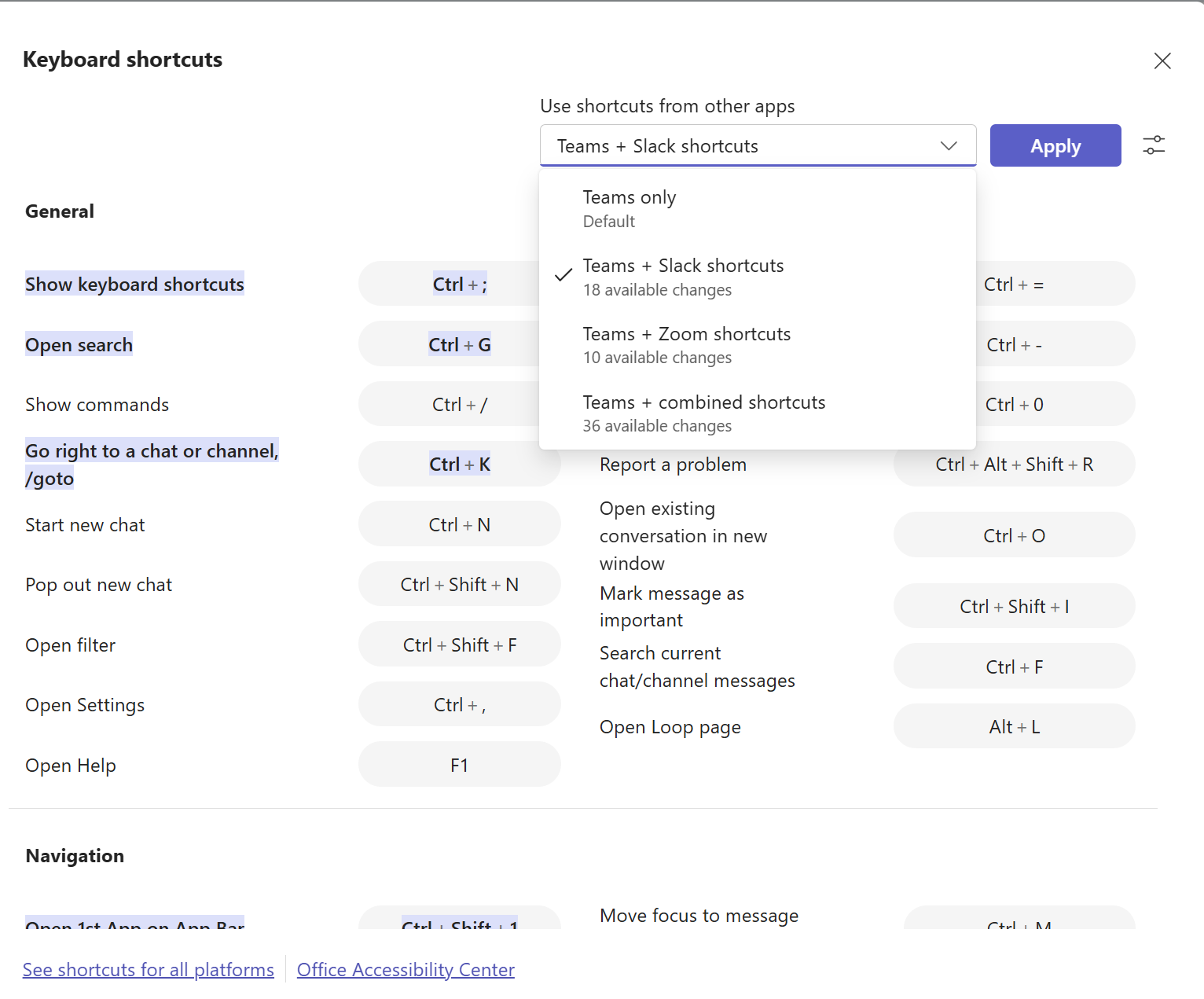
Whether you’ve got a workflow that relies on specific commands or you're used to shortcuts from tools like Slack or Zoom, Teams now lets you personalise your shortcuts to match your habits. Choose from preset layouts inspired by other apps or create your own from scratch. Just head to the top bar menu (•••), select Keyboard shortcuts, and use the dropdown to pick a layout or tweak any shortcut to suit your style. It’s all about helping you work faster and more intuitively.
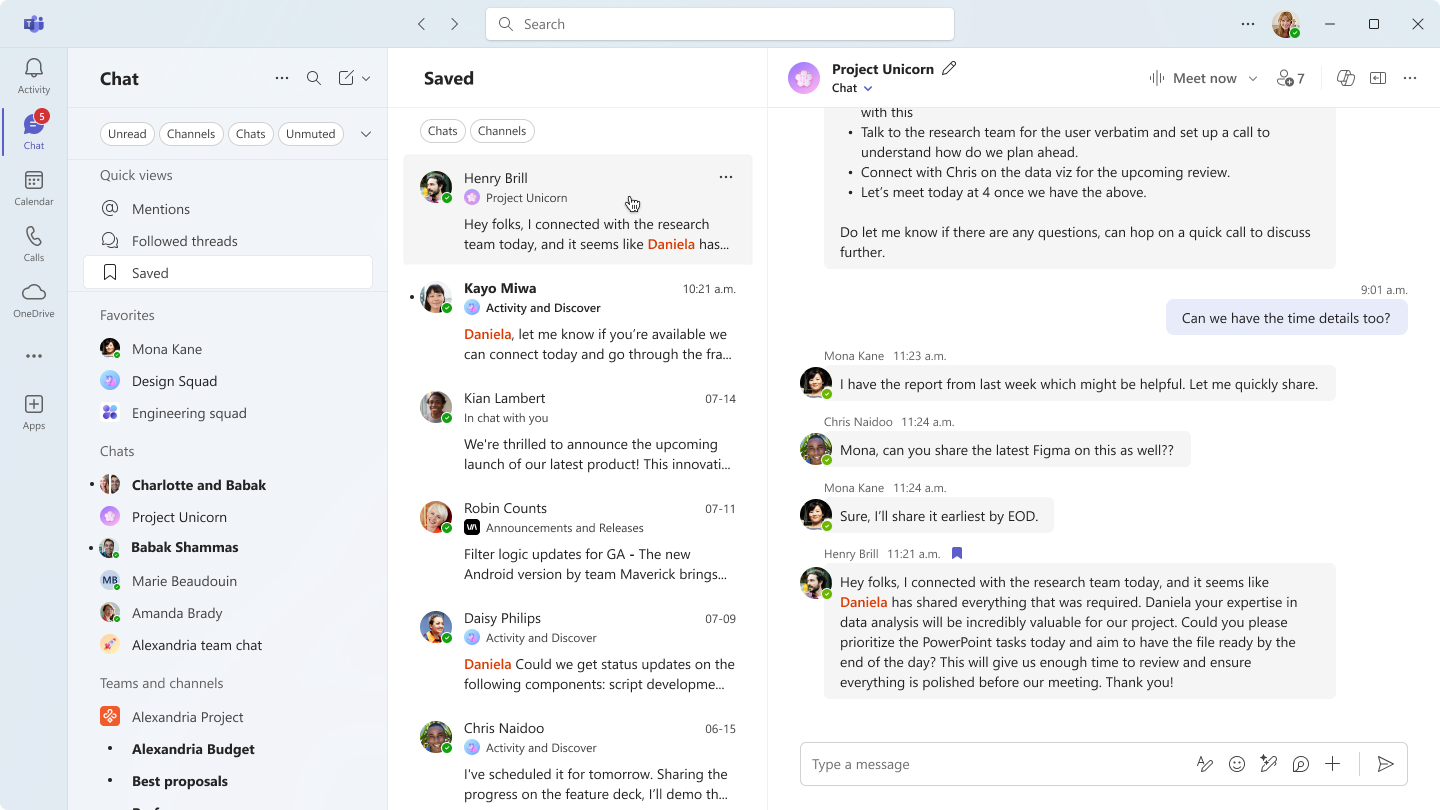
Saved message view
Teams makes it easy to keep track of important messages in chats and channels by letting you save them for quick access. Just hit save, and you’ll find everything neatly organised in the Saved messages view in your chat list. From there, click on any saved item to jump straight into the full conversation in the right pane, ready to review or reply without missing a beat.
Multiple Emoji Reactions
Teams now lets you react to messages and posts with more than one emoji, so you can express yourself more clearly and naturally. Want to acknowledge your manager’s update with a ‘check’ and a ‘Thank you’ ? Go for it. Whether you're showing appreciation, agreement, urgency, or just adding a bit of personality, combining emojis helps you communicate more meaningfully, without cluttering the conversation. It’s a simple way to keep things focused while still saying exactly what you mean.
Meetings, Webinars, and Town halls
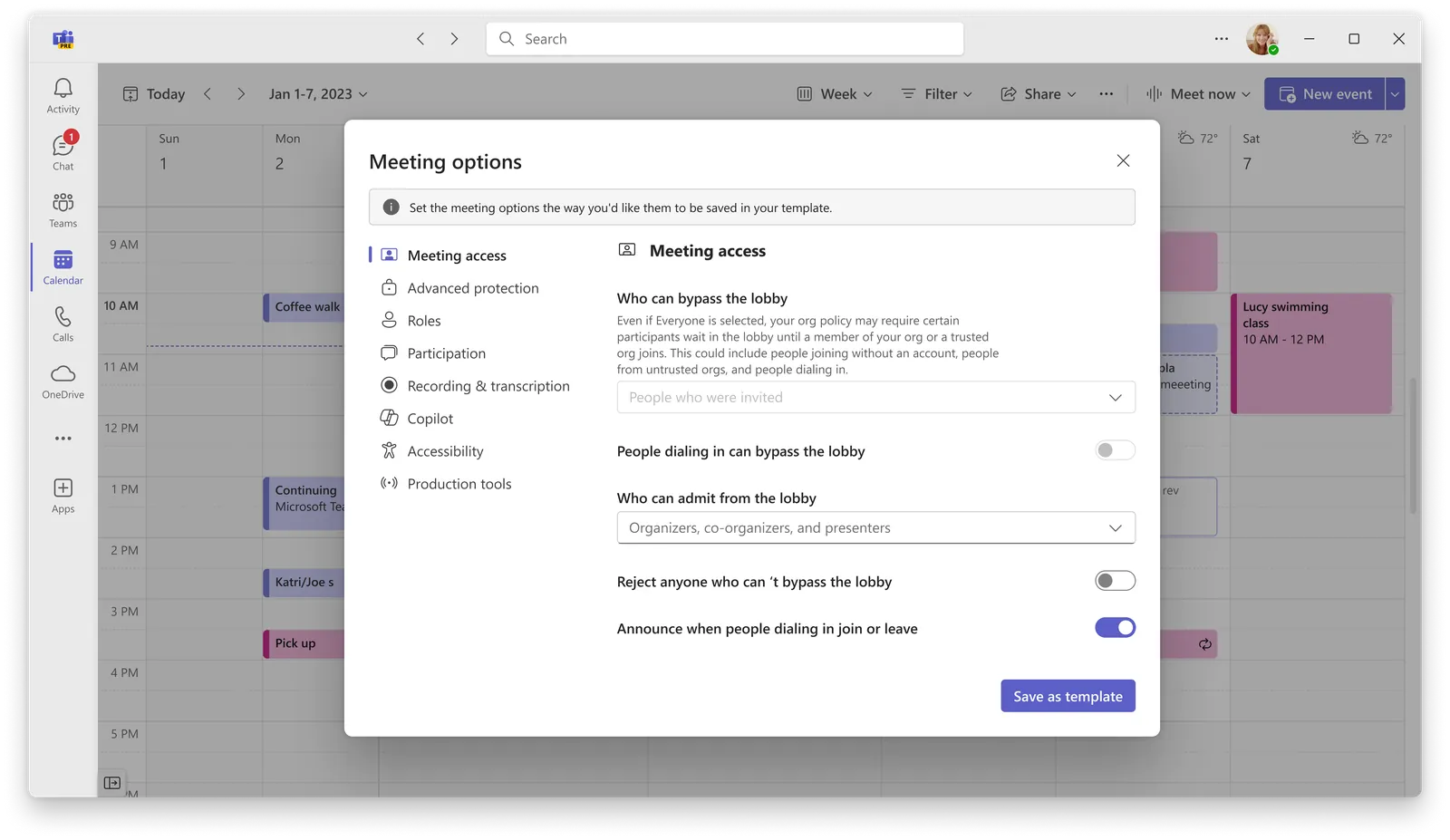
Personal meeting templates [Premium]
Teams now lets you create and customise meeting templates based on how you work, whether it’s one-on-ones, client catch-ups, or support sessions. Just pick your template and all your preferred settings are applied automatically, so you can kick off meetings quickly and confidently. It’s a great way to save time, stay consistent, and keep things running smoothly across your team.
Note: This feature is available with a Teams Premium licence.
Custom Dictionaries for Copilot
IT administrators now have access to detailed logs for both the Give and Take Control and Screenshare features in Teams. These logs include names and timestamps for each action, showing who initiated or received control, and who started a screenshare session.
Lobby Chat for Meeting Organisers
Meeting organisers can now send one-way messages to attendees waiting in the lobby. This feature helps external participants stay informed and gives organisers more control over meeting flow and communication before the meeting begins.
Edit Display Name During Meetings
Participants can now temporarily change their display name during a Teams meeting. Whether it’s to reflect a preferred name, indicate a role (such as “Moderator” or “Interpreter”), or support inclusive representation, the change is visible only during the meeting and does not affect recordings or other artifacts.
Customise Town Hall Screens [Teams Premium]
Organisers can now personalise the attendee view in Teams Town Halls using the “Manage what attendees see” feature. This includes custom layouts, backgrounds, and name tags to deliver a more polished and engaging presentation. Available with a Teams Premium licence.
Immersive Events and Presenter Tools [Teams Premium]
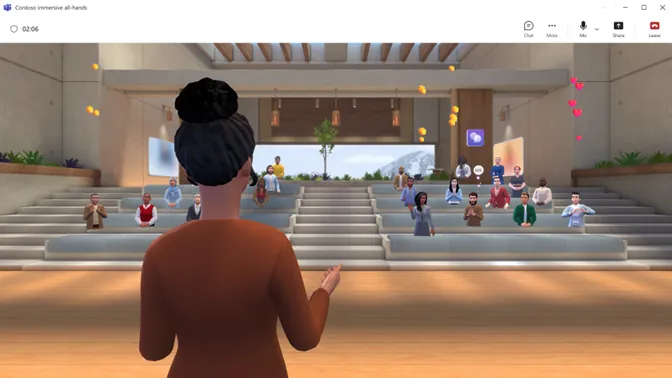
Teams now supports immersive 3D events for up to 300 attendees. Organisers can design virtual spaces, customise visuals, and host events with spatial audio for dynamic, interactive experiences. New presenter tools simplify event management with features like:
- Streamlined presentation start flow
- Teleporting attendees to specific areas
- Cross-room attendee search
- A simplified control panel for cleaner production
Experience Customisation Tools also allow event creators to personalise immersive spaces with logos, colours, images, and videos. No coding required.
Teams Phone
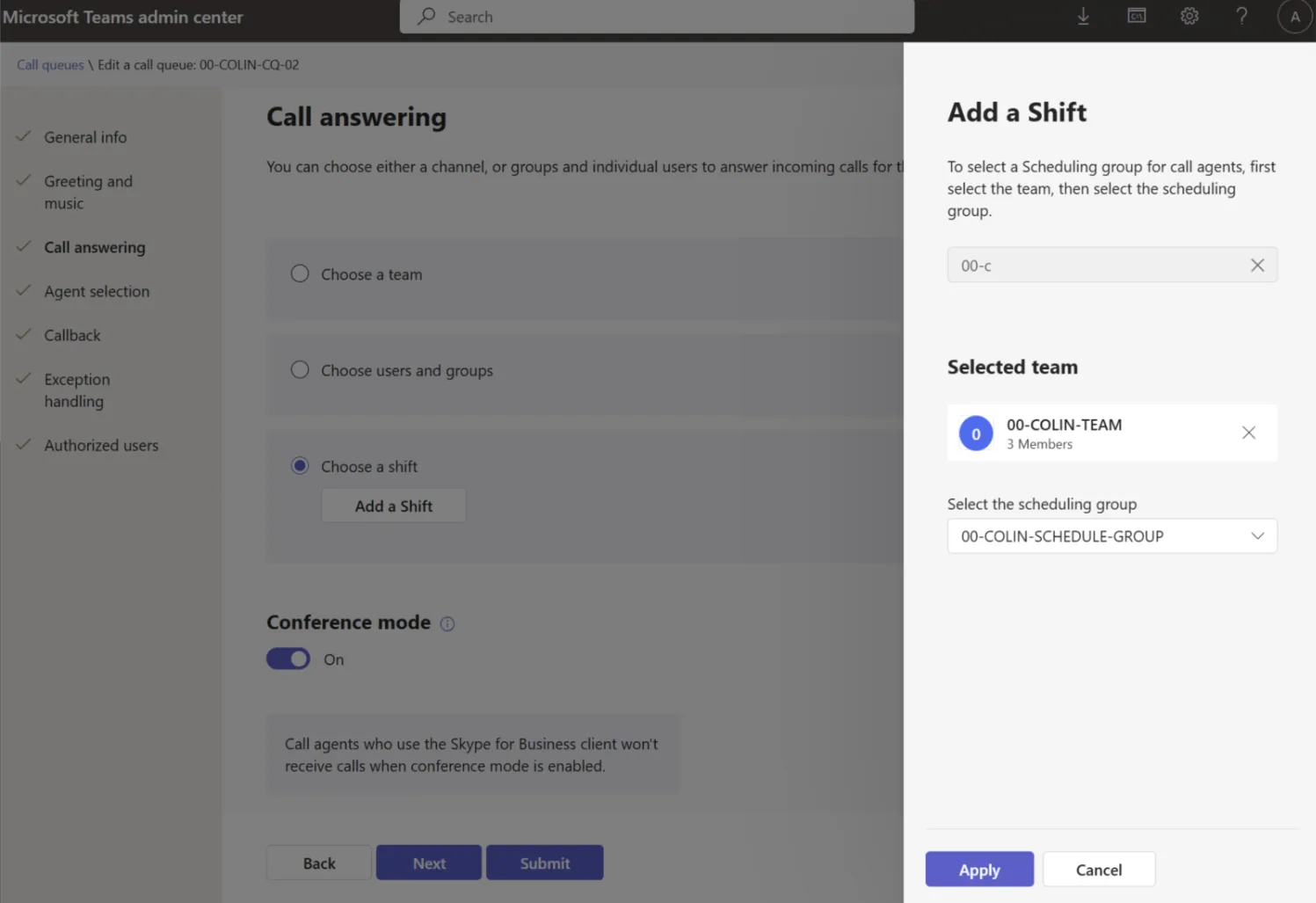
Microsoft Shifts integration with Teams call queues
Teams admins can now streamline call queue management by integrating scheduling groups from the Shifts app. Once work shifts are set up, call queues can reference that data to route calls only to agents who are actively on shift, no manual updates needed.
This integration offers:
- Smarter workforce management by aligning call routing with real-time shift schedules
- Greater flexibility in configuring call queues based on team availability and timing
It’s a simple way to ensure the right people are available at the right time, improving both efficiency and responsiveness.
Email notifications for phone number assignments
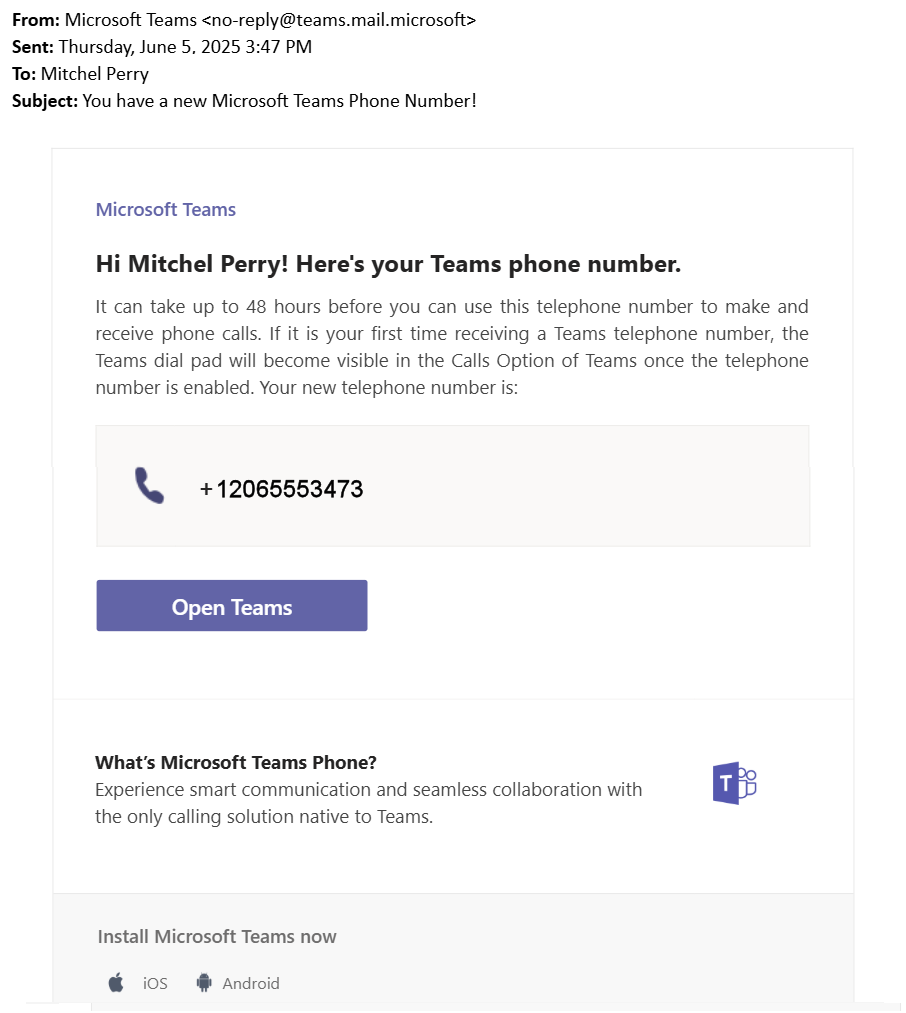
Admins can now send Microsoft-branded email notifications to users when assigning or unassigning a Teams Phone number using PowerShell. This feature helps create a smooth onboarding experience for new Teams Phone users by keeping them informed and ready to get started.
Each notification includes:
- The assigned or unassigned phone number
- Activation timeline (up to 48 hours)
- Instructions for accessing the dial pad in Teams
- Helpful links to explore Teams Phone features
It’s a simple way to ensure users have the right info at the right time, making adoption easier and more efficient.
Device sign-in support for non-touch models
Teams now offers more flexible sign-in options for users on non-touch devices. Instead of relying on device code flow (DCF) authentication, users can log in directly using input methods suited to their device, like a T9 keyboard. This update makes the sign-in experience more intuitive and accessible, especially for devices with limited input capabilities.
Workplace: Places and Teams Rooms
Book desks using maps [Premium]
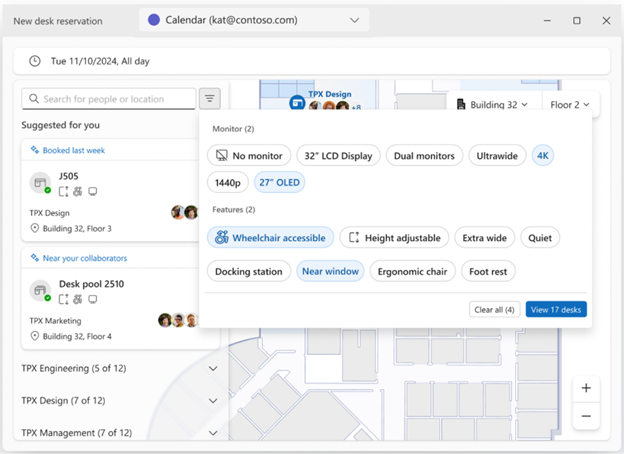
Booking a desk in Teams is now easier and more visual. With the new map-based interface, you can view office layouts and reserve desks directly from an interactive map, perfect for mobile devices and smaller screens. Whether you're booking an individual desk or a pooled space, the experience is fully integrated across Outlook, Teams calendars, and the Places app.
This feature is available with a Teams Premium licence and is designed to make hybrid work more seamless and intuitive.
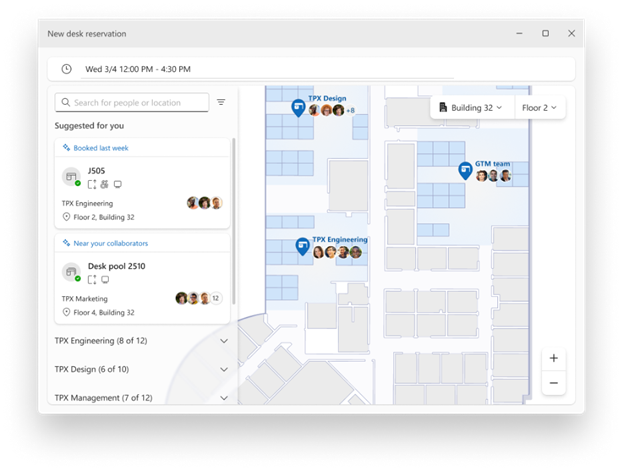
Book desks near colleagues [Premium]
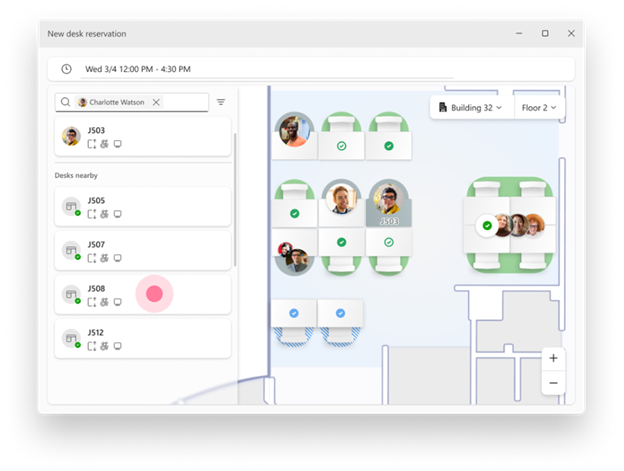
Teams now makes it easier to coordinate your workspace with teammates. When booking a desk, you can see who’s sitting nearby or search for a specific colleague’s location on a given day, then choose a desk close to them. It’s a great way to stay connected and collaborate more easily in the office.
You’re always in control of your own desk visibility, so you can decide whether or not to share your location with others. This feature is available with a Teams Premium licence.
Book desks for partial days and multiple days [Premium]
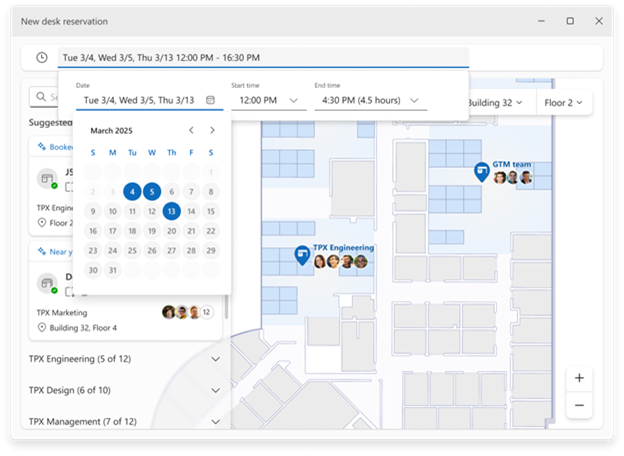
Desk reservations in Teams are now more adaptable to how you actually work. You can book a desk for just a few hours or reserve the same desk for multiple days, all in one go. No need to make separate full-day bookings for each day.
Whether you're popping in for a morning meeting or planning to work from the office all week, this update makes it easier to reserve space that fits your schedule.
This feature is available with a Teams Premium licence.
Book desks on behalf of others [Premium]
If you manage someone else’s schedule, you can now reserve a desk on their behalf using the familiar calendar delegation workflow. This new capability mirrors how Outlook calendar management works, making it easy for delegates to book workspaces without changing their routine.
It’s a seamless way to support executive assistants, team coordinators, and anyone managing bookings for others. This feature is available with a Teams Premium licence.
Configure auto-release for no-show desk reservations
Admins can now set desks to automatically release if a user doesn’t check in within a specified time frame. This helps free up space for others and ensures desks aren’t held all day by no-show reservations. It’s a simple way to improve workspace availability and make desk usage more efficient across the organisation.
Enhanced walk-up desk booking experience for users
Teams walk-up desk booking now features an enhanced interface that makes the process clearer and more user-friendly. Users will see immediate confirmation when a desk is successfully reserved, or receive notifications if a desk is already booked. The updated experience also provides helpful guidance on managing reservations, syncing with your calendar, and navigating the booking process.
New Admin Controls for Desk Management in Teams
Teams now offers more flexibility and control over how workspaces are managed, making it easier for organisations to tailor desk usage to their needs.
Configurable Desk Modes
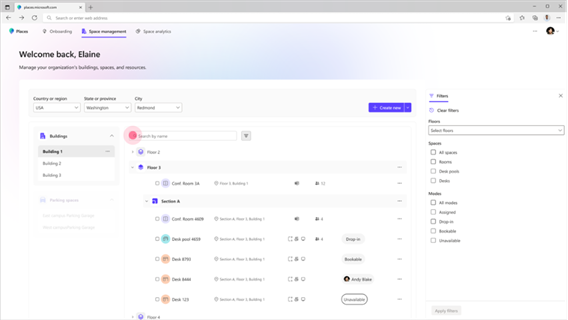
Admins can now set desks to one of four modes:
- Reservable – Available for advance or walk-up booking
- Drop-in – Available for on-the-spot use only, not reservable
- Assigned – Permanently linked to a specific user
- Unavailable – Not available due to maintenance or other reasons
These modes support a range of workspace strategies, from hot-desking to dedicated setups, giving teams more control over how space is used.
New Places Admin Role Support
Places now supports built-in Microsoft 365 admin roles, allowing IT teams to delegate management tasks (like updating office details or approving changes) without needing elevated permissions. This streamlines day-to-day operations and improves role-based access control.
Places Admin Dashboard
A new dashboard gives administrators a central, user-friendly interface to manage Places directory data. From office locations to desks and rooms, admins can easily view, edit, and apply booking policies, all in one place.
Fundamentals and Security
Microsoft Teams: Support Audit logs for Give and Take Control and Screen share
IT administrators now have access to detailed logs for both the Give and Take Control and Screenshare features in Teams. These logs include names and timestamps for each action, showing who initiated or received control, and who started a screenshare session.
This enhancement provides greater transparency and accountability for all control and sharing activities, helping organisations monitor usage and maintain compliance. Logs are accessible through the Teams Admin Center.
Need help navigating the latest enhancements to Teams?
The latest updates in Microsoft Teams bring a host of new features designed to enhance productivity, streamline communication and provide a more personalised experience. With improvements in chat and collaboration, enhanced keyboard shortcuts and advanced code block sharing, Teams continues to evolve as a powerful tool for seamless and efficient communication. At Flotek, we offer all the support you need to get the most out of Teams and its most recent updates as part of our managed IT services.
Ready to Get Started?
Let’s talk. There’s no pressure. Just a smarter way to understand your tech.
Email us on sales@flotek.io or book an audit online at www.flotek.io/contact
Get More from Microsoft 365
Ready to explore more about Microsoft 365? Explore more ways to unlock the full power of your suite:
How To Use Microsoft Teams For Knowledge Management
The Best Task Management Apps In Microsoft Teams
A Guide To Adding External Users To Microsoft Teams
Further reading: What's new in Microsoft 365 Copilot | January Edition | What's New in HUB365: October Edition | Microsoft 365 Copilot Updates | September
What's new in Microsoft Teams in September?

How do I find files in a Teams chat?
Can I filter search results in Teams?

Schedule a Free IT Audit & Cost Breakdown


Want it fixed and kept that way? From just £14 a month, we verify your domain and monitor it 24/7, so your email lands and nobody else can send as you.