






Microsoft Copilot Outlook Updates


.avif)

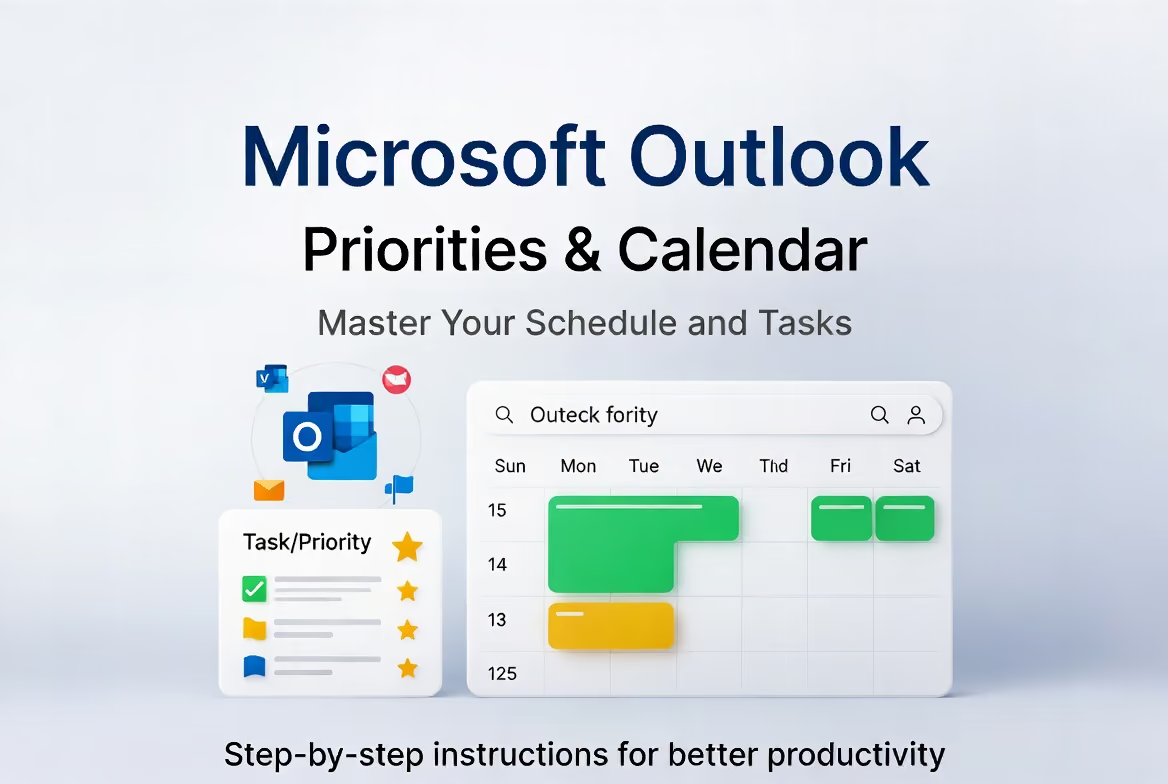
From inbox prioritisation to calendar instructions that work around your life, the latest Copilot updates are quietly saving businesses real time.
Most of us spend more time in Outlook than we probably care to admit. Emails to read, meetings to juggle, priorities to sort. It adds up fast. So when Microsoft quietly makes Outlook smarter, it is worth paying attention.
Microsoft has been steadily embedding Copilot across the Microsoft 365 applications businesses already rely on. Word, Excel, Teams, and Outlook are all getting more capable. Not in a flashy, feature-dump kind of way. In a quietly useful, saves-you-ten-minutes kind of way. And the latest additions to Outlook are a good example of that.
Email priority: less inbox noise, more focus
One of the more practical updates is Copilot's ability to surface and prioritise emails based on what actually matters to you.
Rather than working through a flat list of unread messages, Copilot analyses your inbox and flags the emails most likely to need your attention. It looks at who the sender is, whether you have been actively corresponding with them, whether a thread contains a question directed at you, and whether time-sensitivity is implied in the content.
The result is a smarter starting point for your morning. Instead of reading top to bottom and hoping the urgent ones are obvious, Copilot gives you a clearer picture of where to begin.

Here is what that looks like in practice:
- A client has replied to a proposal you sent three days ago. Copilot flags it ahead of a newsletter that arrived at the same time.
- A message from your finance team contains a question with a deadline attached. It surfaces near the top rather than getting lost mid-inbox.
- A supplier you correspond with regularly has sent an update that references an outstanding order. Copilot recognises the active relationship and treats it accordingly.
- A thread you have not engaged with in weeks sits lower down, giving you space to deal with live conversations first.
- You come back from two days out of office and rather than facing 150 emails in arrival order, Copilot has grouped and ranked them so you can work through what genuinely needs you first.
Beyond prioritisation, Copilot can also summarise long email threads so you do not have to read every reply to understand where a conversation has landed. If a chain has gone back and forth eight times while you were in meetings, you can ask Copilot to catch you up in a few sentences. It pulls out the key points, any actions that have been agreed, and flags anything that is waiting on you specifically.
You can also use it to draft replies directly from that summary. Tell Copilot the outcome you want, and it will write a response in your tone. Review it, adjust if needed, and send. For high-volume inboxes, that alone can save a meaningful amount of time across a week.
Getting the most out of email priority
The feature works best when you engage with it actively rather than treating it as a passive filter.
If Copilot surfaces something you consider low priority, tell it. Over time it learns your preferences and gets sharper. You can also give it direct instructions, such as asking it to always flag emails from specific contacts, escalate anything that mentions a particular project, or deprioritise certain senders or mailing lists you rarely act on.

Some practical ways to get more from it:
- Use the summary feature every morning before you open a single email. Get the lay of the land before you commit time to anything.
- Ask Copilot which emails in your inbox are waiting on a response from you specifically. It is easy to lose track of threads where the ball is in your court.
- If you manage a shared inbox or cc'd threads, ask Copilot to filter out messages where you are cc'd but not directly addressed. This alone removes a significant amount of inbox noise for most people.
- Ask it to identify any emails that contain commitments you have made but not yet acted on. A useful end-of-week check to make sure nothing has slipped.
Calendar instructions: Copilot as your scheduling assistant
The calendar side of the update is arguably even more useful for anyone running a busy diary.
You can now give Copilot natural language instructions about how you want your calendar managed. This means having a genuine conversation with it about how your week should be structured, rather than manually blocking time and hoping meetings do not fill every gap.
Instructions you can give it:
- "Block out two hours every Tuesday morning for focused work and protect it from meeting requests"
- "Avoid scheduling meetings before 9am or after 5pm"
- "Keep Friday afternoons clear where possible"
- "If I have more than three consecutive meetings, suggest a break"
- "Flag any week where I have fewer than four hours of unscheduled time"

Copilot takes that context into account when you are booking meetings or when others try to book time with you. It can also summarise your upcoming week, flag scheduling conflicts before they become a problem, and suggest better slots when a proposed meeting clashes with something already in your diary.

Here is how that plays out in real situations:
- You are trying to find time for a project review with three colleagues. Rather than manually cross-referencing four calendars, Copilot identifies the next available slot that works for everyone and accounts for your protected focus time.
- A meeting request arrives for Thursday morning, but you have back-to-back calls already. Copilot flags the conflict and suggests two alternative times later in the week.
- You ask Copilot to prepare a summary of your week ahead. It comes back with your commitments laid out, highlights a day where you have six hours of meetings, and suggests which of those could potentially be shortened or moved.
- You are heading into a busy period and want to make sure you have time to prepare for a key client presentation. Copilot blocks preparation time in the days before automatically, based on your instruction.
- You have a recurring one-to-one that has been skipped three weeks running due to diary clashes. Copilot flags this and suggests rescheduling it before the gap grows any wider.
Working patterns that do not fit the standard nine to five
This is where calendar instructions become genuinely useful for a much wider range of people than you might expect.
Take Mary. She works Monday to Wednesday. Her colleagues and clients know this in theory, but meeting invites still land on Thursdays and Fridays on a regular basis. Without Copilot, those invites just sit there. Mary does not see them until she is back at her desk on Monday, by which point the organiser has been waiting days for a response and may have already tried to rearrange things without her.
With a simple calendar instruction, that changes completely. Mary tells Copilot: "I only work Monday to Wednesday. Decline any meeting requests outside of those days and suggest an alternative time within my working days." From that point, it handles it automatically. The organiser gets a prompt, polite decline with suggested alternatives, and nobody has to wait until Monday to find out the meeting does not work.
It is a small change that removes a genuine source of friction for part-time workers, job sharers, and anyone whose schedule does not follow a standard pattern.
The same logic applies to protected time during the working day. If you need to leave at 3pm for the school run and cannot take calls between 3pm and 5pm, you no longer have to manually block that time, remember to decline late invites, or write the same apologetic response every time someone books you at 4pm. You give Copilot the instruction once: "Decline any meeting requests between 3pm and 5pm and suggest an alternative time earlier in the day." It handles the rest, consistently, without you having to think about it again.
For anyone juggling work around family commitments, caring responsibilities, or simply a working pattern that does not fit neatly into a conventional diary, this kind of automation is not a gimmick. It is a practical tool that makes the day run more smoothly and means other people get a faster, clearer answer rather than silence.
Getting the most out of calendar instructions
Like the email feature, the calendar assistant rewards a bit of upfront thinking.
Spend ten minutes telling Copilot how you actually want your week to look, not just how it currently looks. Think about the rhythm that helps you do your best work and give it those parameters. Most people have a rough sense of this but have never translated it into anything their calendar can act on.
Some useful starting points:
- Tell it your non-negotiables. Focused work time, lunchbreaks, school runs, whatever applies. Copilot will treat these as protected slots.
- Ask it to audit your last four weeks of calendar activity and tell you how much time you spent in meetings versus focused work. The answer is often surprising and gives you a useful baseline.
- Use it to prepare for the week on a Sunday evening or Monday morning. A two-minute conversation with Copilot can give you a clear picture of what is coming, where the pressure points are, and what needs rearranging before the week starts.
- If you lead a team, use calendar instructions to protect time for the one-to-ones and check-ins that tend to get squeezed out when things get busy. Let Copilot defend that time so you do not have to.
Why it matters in practice
The thread running through both of these updates is the same: Copilot is not trying to replace how you work. It is trying to reduce the admin overhead that gets in the way of actual work.
Most people are not slow because they lack effort or capability. They are slow because their tools create unnecessary friction. Sorting through a cluttered inbox takes time. Manually managing a busy calendar takes time. Anything that reduces that overhead has real commercial value, whether you are running a small team or managing a complex operation.
These are not the most dramatic AI announcements you will read this year. But they are the kind of incremental, practical improvements that compound over time. Five minutes saved here, ten minutes saved there, a missed email caught before it became a problem. Across a team of ten people, that adds up to something worth taking seriously.
If you are using Microsoft 365 and have not yet explored what Copilot can do across your tools, it is worth a proper look. The applications you already use every day are quietly getting more useful. It pays to keep up.
Further Reading
Microsoft 365 Copilot for Small Businesses — Copilot is now available for organisations under 300 users. Here is what it means in practice.
A Journey with Jay Ball on Microsoft 365 Copilot — Flotek CEO Jay Ball on what Copilot means for growing businesses and the teams running them.
AI for Business: Copilot vs ChatGPT — A clear breakdown of both tools and which is more suited to your organisation.
25+ Microsoft 365 Tips and Tricks — Get more from the tools you already pay for, across the whole Microsoft 365 suite.





.jpg)








Schedule a Free IT Audit & Cost Breakdown


Download ‘Your First 60 Days with Microsoft Copilot’ Guide




%20amended%20logo.avif)








.avif)
.avif)
%20(1).avif)
.avif)