
Manage your contacts in Teams - People App


Manage Your Contacts In Teams
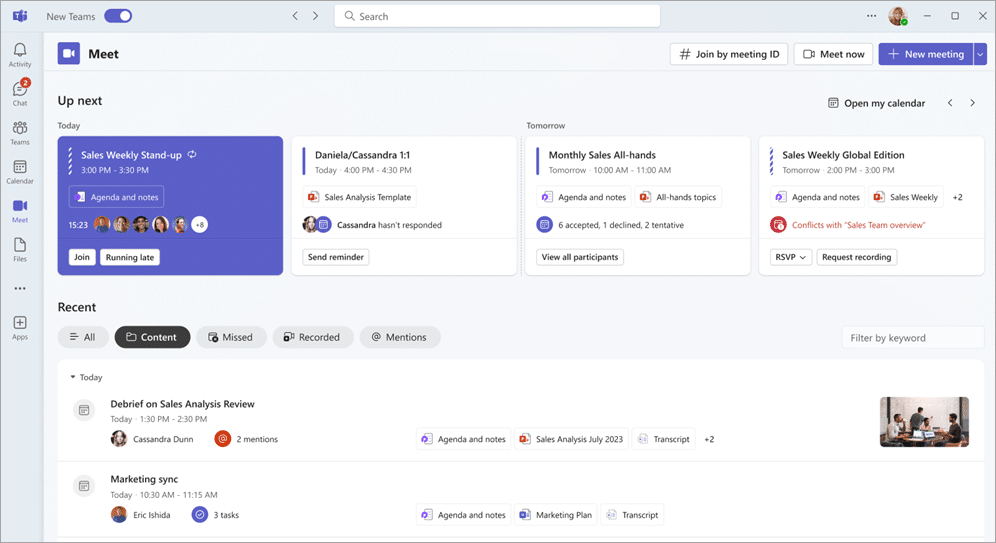
Meet is an exciting new feature in Microsoft Teams, designed to streamline how you handle meetings. With Meet, you can effortlessly organise and track all aspects of your meetings within Microsoft Teams. This innovative space allows you to gear up for upcoming meetings, review ones you've missed, and access important resources like recordings, chats, and summaries all in a single, convenient location.
At Flotek Group, we understand the importance of effective meeting management for your business. That's why we're thrilled to introduce Meet as part of our Microsoft Teams offerings, available within our broader managed IT support. This feature simplifies the way you prepare and follow up on meetings, ensuring you never miss a beat. Whether you're looking to revisit discussions, check on decisions made, or simply stay on top of your meeting schedule, Meet in Microsoft Teams is your go-to hub.
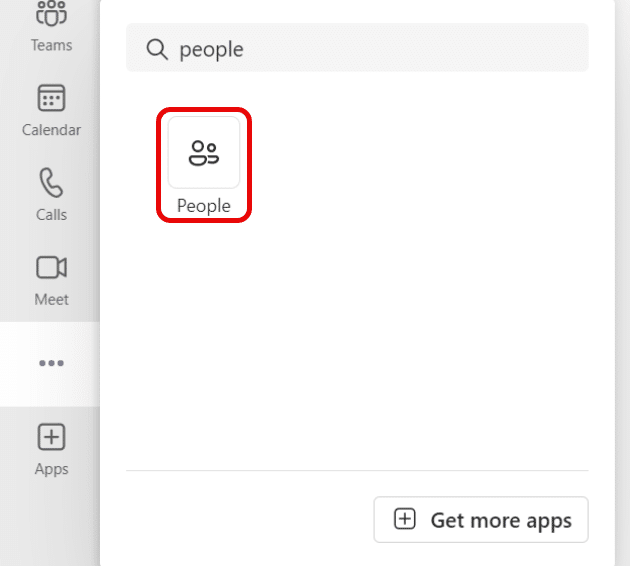
Getting to the People App
To access the app, search for “people” in the preinstalled apps.
Types of contacts
There are two types of contacts, directory contacts which come from your organization, and local contacts which you can add from scratch to your copy of Teams.
Directory contacts have some fields set by your organization, and additional fields which can be edited by you.
Local contacts are stored within your local copy of Teams, and do not synch with an organization’s directory.
Add a new contact
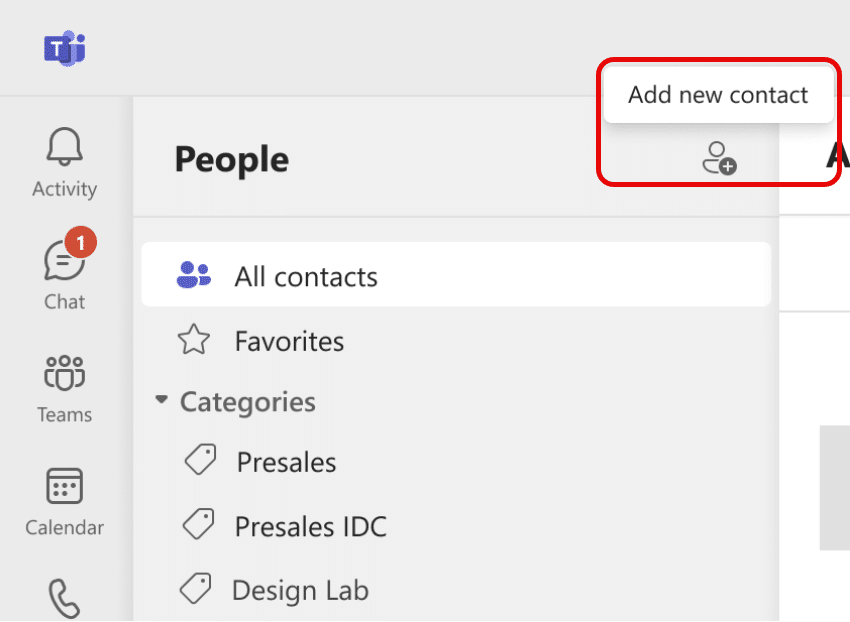
- Click the New contact icon in the top left corner.
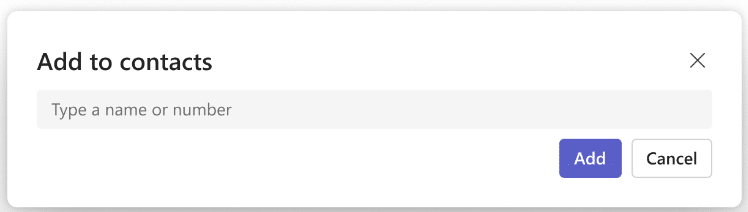
- Type the name or phone number of a person you would like to add. If your company has a directory set up, the window will automatically suggest people belonging to your organisation. See section below for more information.
- After clicking add, you will be able to provide more information for the contact.
- Select Create.
A new contact is automatically saved in your contacts, and you can see it in All contacts tab in the left navigation. The contacts will be also available through Microsoft 365 in Outlook.
Add people in your organisation to your saved contacts
If your company has a directory set up, you'll be able to see information about your colleagues without saving them as contacts. You can search for them in Search in Teams or click on their picture in Chats or Channels. Their profile card will show information collected from the directory.
If you want to add other information or to see your colleagues as part of your contact list, you can save them to your contacts by picking their name in directory search during contact creation.
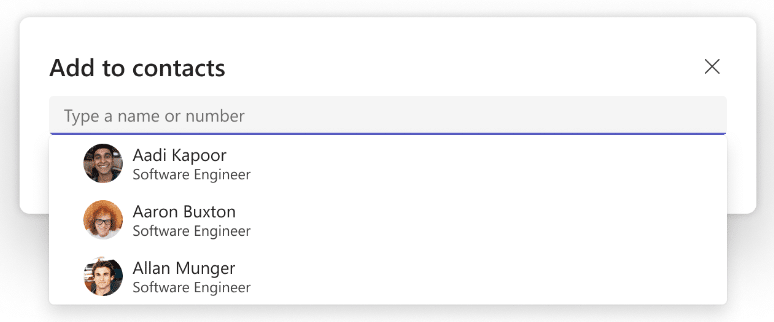
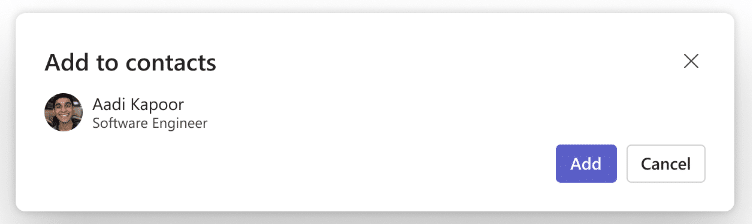
The new contact is linked to the existing directory contact and will be updated automatically to stay up to date with directory information. For example, if their title changes in the directory, your local contact will be updated with the same information.
Only you will see the information you add to your contact and your changes to such information will not by synced back to company directory.
For directory contacts, you may not edit or delete any directory fields, including, but not limited to, name and email addresses. These fields will appear grayed out and you will not be able to modify them. Please contact your IT admin or HR department for such requests.
View contact Information
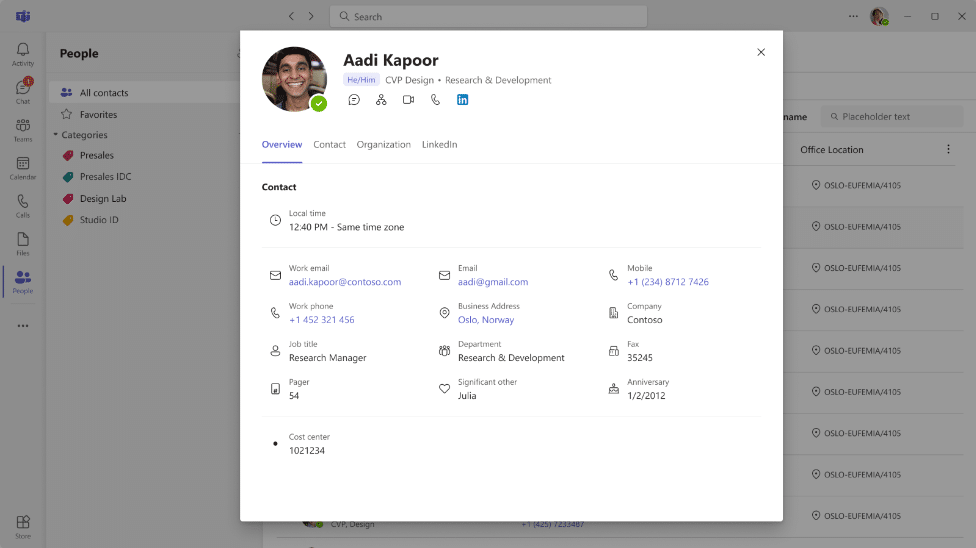
Click on a picture or name of a contact from the list to open the profile card and learn more about them.
Edit Contact Information
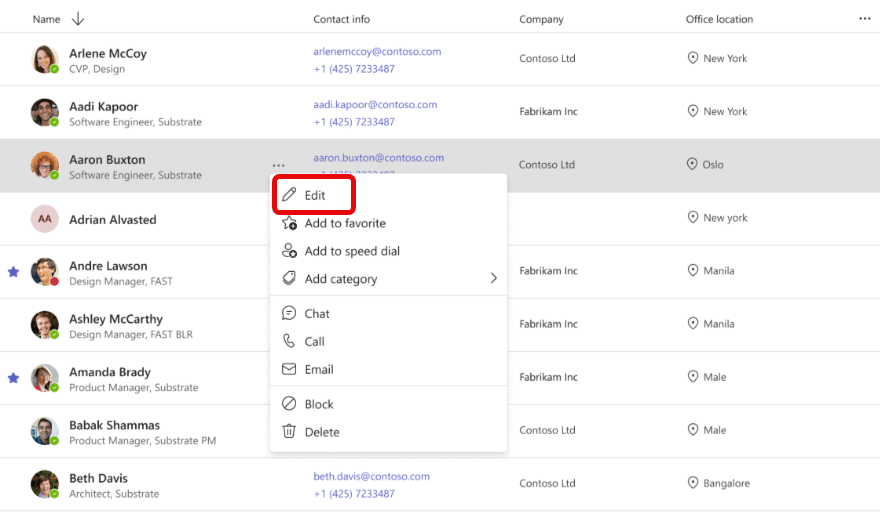
To edit a contact, select edit contact in the dropdown menu.
Add a contact to favourites
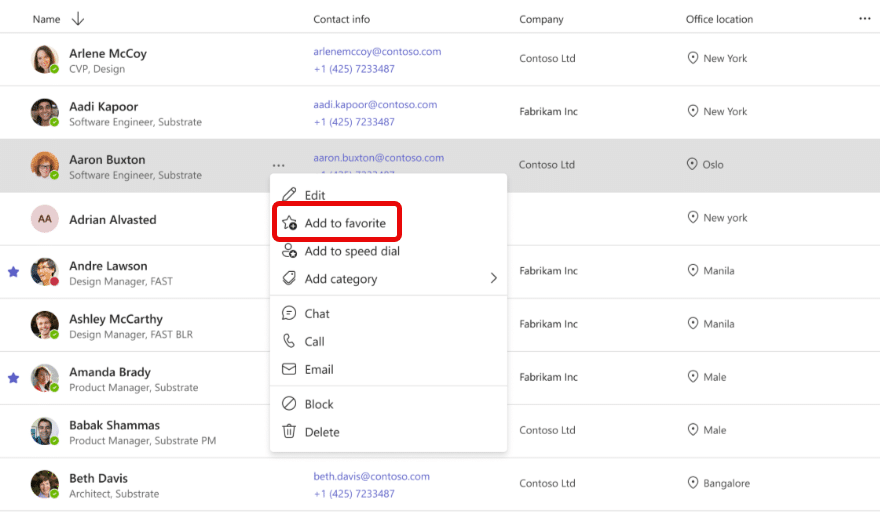
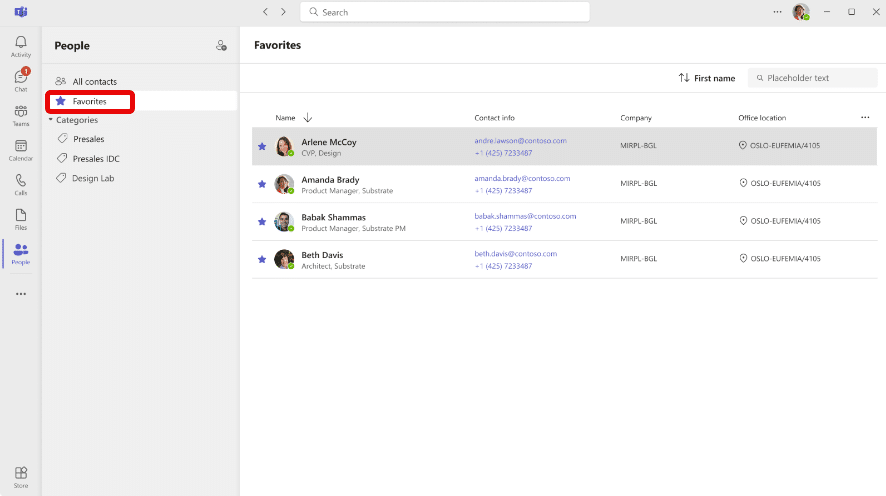
To add someone to your favourites, select the contact, and then choose Add to favourite in the drop-down menu.
Add a contact to Speed Dial
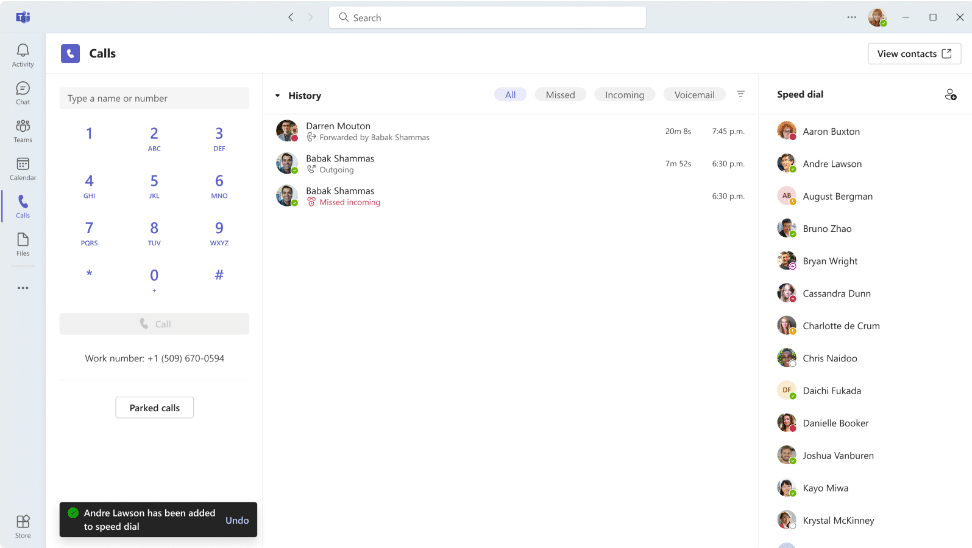
To add someone to your speed dial, select the contact, and then choose Add to speed dial in the drop-down menu.
Add a contact to category
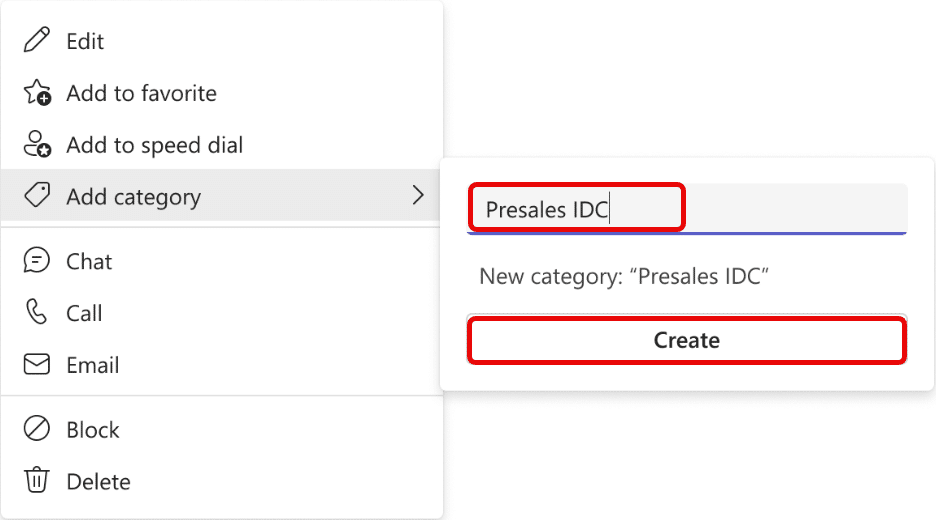
To add a contact to a category, select the contact, and then choose Add category in the drop-down menu. It will open the menu allowing you to select one of the existing categories or to create a new one.
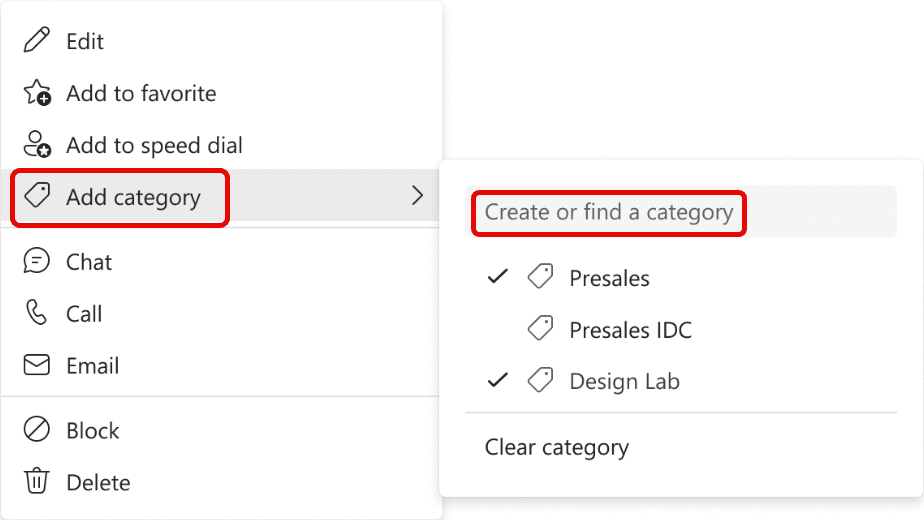
You can see the already assigned categories marked in the dropdown. Click on some specific category name to add or remove the contact from that category.
If you would like to create a new category, type a desired name in the search box and confirm it by clicking the Create button. The newly created category will appear in the left navigation.
Interested In Improving Your Microsoft Teams?
If you’re looking to bolster your managed cyber security services or get started with Microsoft Teams contact our team here or call us on 02921 508000.
Further reading: Stay on Top of Meetings with Teams Meet
How do I open the People app in Teams?

Can I add contacts in Microsoft Teams?
What is speed dial in Teams?

Schedule a Free IT Audit & Cost Breakdown