
Using Microsoft Teams for Project Management


Guide On How To Use Microsoft Teams For Project Management
Microsoft Teams has become an invaluable tool for remote collaboration and project management. With its messaging, document sharing, task management and video conferencing features, Teams provides everything you need to manage projects and teams efficiently in one place. For years, Flotek has been one of the leading fully managed IT support providers in the UK, and we’ve pulled together a complete guide on how to use Microsoft Teams for effective project management:
Getting Started With Teams
The first step in using Microsoft Teams for project management is to set up Teams if you haven't already. Teams is available as part of an Office 365 subscription or as a free version. Once signed up, you can create a new Team for each project you are working on. Add the members of your project and set permissions. Consider naming conventions - add the project name so it's clear which Team is for which project.
If you’re new to teams, you might like to read our guide to Microsoft Teams for beginners.
Organising Your Team
Teams allows you to create multiple Channels within a team for different topics, tasks, or processes. For project management, it's useful to have channels for areas like:
- General - for team-wide updates and announcements
- Brainstorming - for ideation and collecting creative ideas
- Planning - for scopes, schedules, budgets
- Development - for the technical implementation work
- Testing - for quality assurance and user acceptance testing
- Issues / Risks - to discuss any problems or risks
- Sign-offs - for approval gates and stakeholder sign-offs
- Training - for preparing user guides and training materials
- Retrospectives - to review what went well and what to improve
You can also create private channels limited to only certain members. Channels help to keep conversations organised and on-topic. We recommend naming channels clearly and consistently across projects.

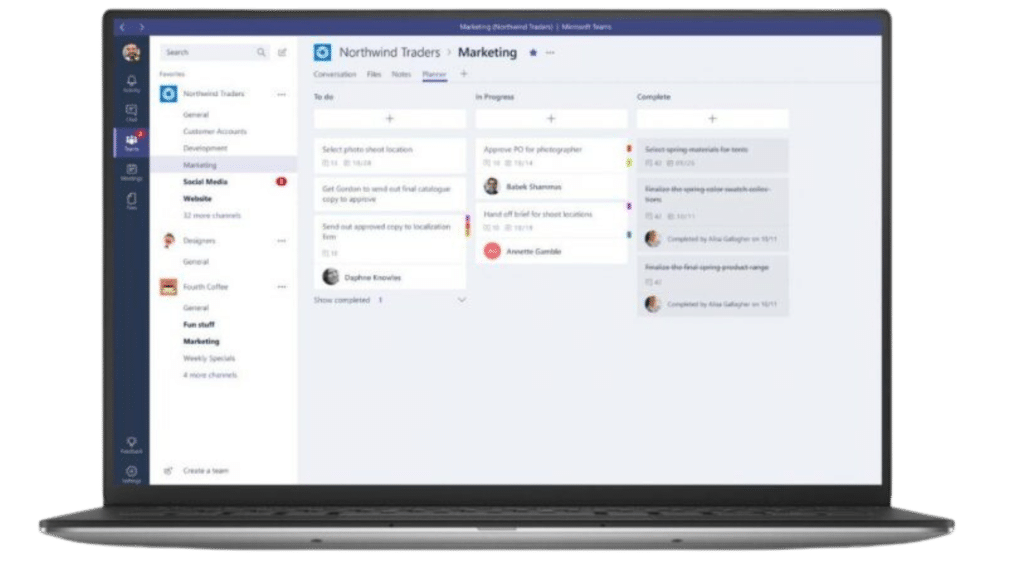
Managing Tasks With Planner
Microsoft Planner integrates with Teams to provide visual task management for teams. You can set up a Planner tab within a Team channel to create tasks, assign them to members, set due dates, and track the status. Planner displays tasks on a kanban-style board, which provides an agile way to visualise work. Use Planner to create a task backlog, to-do lists, assign work, and track progress. We recommend integrating Planner with Project Online for powerful project scheduling capabilities.
Collaborating With Office Apps
Teams integrates with other Office 365 apps like Word, Excel, PowerPoint, and OneNote. Team members can collaborate on documents in real-time with coauthoring, access a shared files library, and edit documents without having to switch between apps. Use Word for meeting notes, Excel for budgets/schedules, PowerPoint for presentations, and OneNote for an ongoing project notebook. You can store all project documents in the SharePoint document library.
Scheduling With Calendar
The Calendar app lets you view and manage team schedules and set up meetings. Project managers can schedule recurring status update meetings or milestone reviews, and the Calendar can display member availability so you can find the best time to meet. Send meeting invites to channels or individuals and join with one click and use appointments for key project dates like deliverable deadlines.
Communicating With Chat
Teams provides chat rooms for each channel so you can have ongoing conversations to brainstorm ideas, ask questions, and give updates. Don’t forget to use @mentions to get someone's attention, and remember that important chats can be pinned for easy reference. For quick discussions, start a chat with one or more team members. Chat is a central way teams collaborate in Teams. Keep chats focused by threading conversations into topics.
Hosting Video Meetings
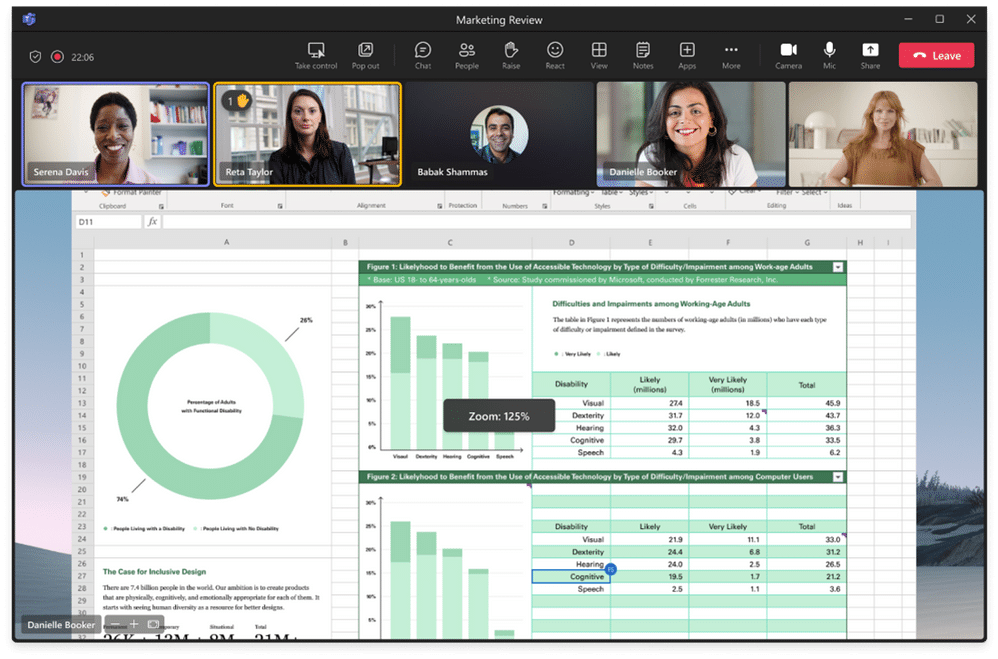
Teams Meetings provides HD video conferencing for meetings, presentations, reviews, and workshops. You can share your screen to give a demo, whiteboard ideas in real-time, and record meetings for later reference. Useful meeting features include the lobby, raise a hand, polls, Q&A, breakout rooms, and background effects. Schedule your video meetings through Calendar or start instant meetings with one click. Use video meetings for daily standups, sprint reviews, and project demos.
Centralising Files
The Files tab in each channel provides access to a SharePoint document library for storing all your project files. SharePoint enables enterprise-grade file management with version history, permissions, and metadata. Your files stay in sync, so everyone has the latest versions. You can store documents, images, CAD files, videos, and more for the project in one place and organise files into folders by status, type, or other attributes.
Analytics And Usage Insights
Team owners can use analytics in the Teams admin centre to get insights about how team members are using Teams. You can view usage trends, active users, message counts, and more, as well as see which apps and integrations are being used. Usage analytics can help managers optimise Teams for productivity. You can analyse data before and after changes to gauge impact and share analytics with the team to celebrate successes.
Adopting Best Practices
To get the most from Teams, establish project management best practices like consistent naming, organised channels, documented processes, and team training. We recommend you manage notifications and avoid alert overload. Build a Teams culture focused on transparency, open communication, and accountability. Teams works best when adopted company-wide and not just project-by-project.

Our Final Word
With its diverse functionality and integrations, Microsoft Teams can serve as a dedicated platform for managing projects from initiation to completion. Teams breaks down silos by putting messaging, meetings, documents, and tasks together in a single collaborative workspace. If you’ve not tried it before, why not adopt Teams for your next project to drive productivity and collaboration?
If you want to talk about the benefits of Teams and the Microsoft 365 suite for your business, get in touch.
Further reading: Channels in Microsoft Teams
Can Microsoft Teams be used for project management?

How do I manage tasks in Teams?
How should I organise a project in Teams?

Schedule a Free IT Audit & Cost Breakdown


Want it fixed and kept that way? From just £14 a month, we verify your domain and monitor it 24/7, so your email lands and nobody else can send as you.