






Using Microsoft Bookings for Virtual Appointments
.png)


.avif)

How to Use Microsoft Bookings for
Virtual Appointments by Jay Ball, CEO
Welcome to my personal blog, today, I'd like to share some insights on a powerful tool available through Microsoft 365 – Virtual Appointments using Microsoft Bookings. As businesses continue to embrace hybrid and remote work models, virtual appointments have become essential. Let me walk you through how to set up and use this feature effectively.
What are Virtual Appointments?
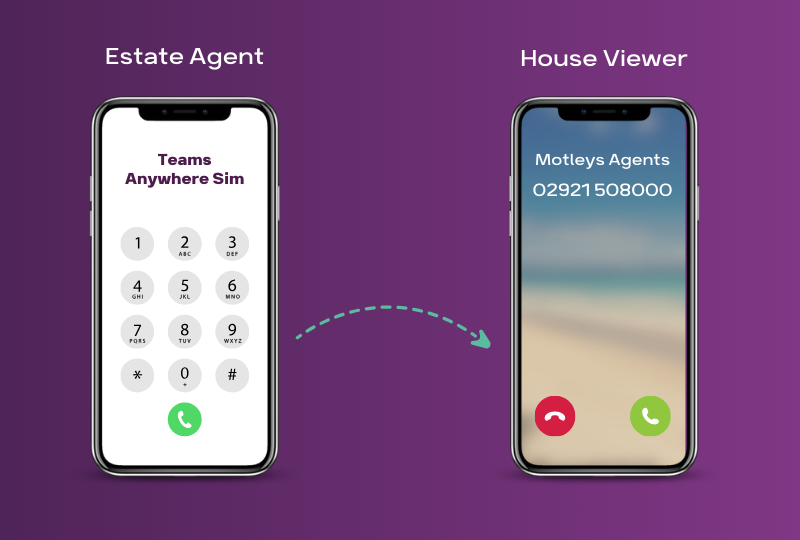
Microsoft Virtual Appointments is a Teams-based meeting solution that allows businesses to schedule and manage client or customer meetings online. It’s built on Microsoft Bookings and provides a professional, streamlined experience for both the business and the customer.
Key Features
- Custom Booking Page: Create a branded page where clients can book appointments, selecting available times, services, and staff members.
- Automated Notifications: Clients receive automatic confirmations and reminders via email or SMS, reducing no-shows.
- Teams Integration: Appointments are conducted through Microsoft Teams, so there’s no need for your clients to download additional software.
- Waiting Room: A branded lobby keeps clients engaged while they wait, displaying custom messages and queue positions.
- Analytics: Track appointment data such as wait times, durations, and no-show rates to optimise your scheduling.
How to Set It Up
Step 1: Enable Bookings
If you haven’t already, your IT administrator needs to enable Microsoft Bookings in the Microsoft 365 admin centre. Once enabled, you’ll find the Bookings app in the Microsoft 365 app launcher.
Step 2: Create a Booking Calendar
In the Bookings app:
- Click "New Booking Calendar."
- Name your calendar (e.g., "Consultations," "IT Support," etc.).
- Add your business details, including operating hours and time zone.
Step 3: Add Services and Staff
Define the types of appointments you offer. For each service:
- Set the duration (e.g., 30 minutes, 1 hour).
- Assign staff members who can handle these appointments.
- Set pricing if applicable.
Step 4: Customise Your Booking Page
Your booking page is the client-facing portal:
- Add your logo and brand colours.
- Set business policies (e.g., cancellation policy, advance notice).
- Enable SMS notifications for appointment reminders.
Step 5: Share Your Booking Page
Once set up, you can share the booking link via:
- Email signatures
- Your website
- Social media profiles
- Direct messages to clients
Using Virtual Appointments
Once a client books an appointment:
- They receive a confirmation with a Teams meeting link.
- Before the meeting, both parties get a reminder.
- At the appointment time, the client clicks the link and enters the waiting room.
- You admit them from the Teams lobby.
- After the appointment, analytics are automatically captured.
Tips for Success
- Buffer Time: Always add buffer time between appointments (even 5-10 minutes helps). This prevents back-to-back meetings from overlapping.
- SMS Reminders: Enable SMS reminders where possible – they significantly reduce no-show rates compared to email-only reminders.
- Test First: Before launching, do a test booking yourself to see the experience from the client’s perspective.
- Branding: Take the time to customise the booking page. A professional-looking page builds trust and sets the right first impression.
Who Benefits Most?
Virtual Appointments through Bookings is ideal for:
- Healthcare providers: Telehealth consultations
- Financial advisors: Client portfolio reviews
- HR teams: Candidate interviews
- IT support: Scheduled troubleshooting sessions
- Education: Student/parent conferences
Licensing Notes
Basic Virtual Appointments functionality is included in most Microsoft 365 plans. However, advanced features (like the SMS notifications and custom waiting rooms) require a Teams Premium licence.
If you’re unsure which licence you need, get in touch with our team or call us on 02921 508000 and we’ll guide you through the options.
Virtual appointments are a simple yet powerful way to improve how your business engages with clients. If you haven’t explored it yet, I’d highly recommend giving it a try!
Further reading: 16 Benefits Of Microsoft 365 | What Is Microsoft Copilot
Discover how Flotek can help with our Microsoft 365 solutions.





.jpg)







Schedule a Free IT Audit & Cost Breakdown

Download ‘Your First 60 Days with Microsoft Copilot’ Guide
%20amended%20logo.png)

.avif)
.avif)
%20(1).avif)
.avif)