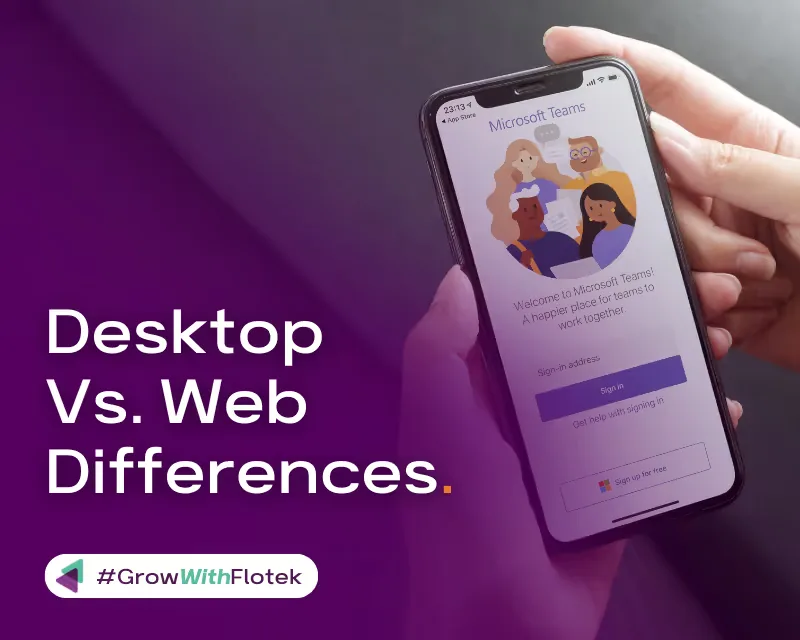
Microsoft Teams Desktop vs Web Differences


Understanding Microsoft Teams: Desktop Vs. Web Differences
Microsoft Teams, and the Teams phone system, brings together messaging, meetings, calling and collaboration into a single platform accessible either through the desktop application or via a web browser. While the core functionality is similar, there are some key distinctions between the desktop and web versions of Teams to evaluate.
If you’re new to Teams, you may be a little confused by the option to use Teams on the web vs. on your desktop.
We’ve designed this guide to walk you through both versions and help you understand the similarities and differences.
Installing And Accessing Microsoft Teams
The Microsoft Teams desktop app must be downloaded and installed on each Windows or Mac computer before use.
This enables tighter integration with other Office apps and access to more advanced features.
By contrast, the Teams web app can be used instantly on any device just by signing into the Office 365 portal through a supported web browser.
The web app eliminates local downloads and updates but lacks the offline capabilities inherent to the desktop version.

Chat and Team Messaging
The chat experience is very similar between both versions.
Users can communicate in group channel conversations or private messages with threaded replies, @mentions, searches, custom emojis and GIFs.
File sharing up to 2GB per attachment is also uniformly supported across the web and desktop versions of MS Teams.
A major advantage of the desktop chat is that it lets you smoothly transition from texting to voice or video calls while keeping everything together in one window.
This unified experience is not possible with the web application.
Meetings, Calls And Video
The meeting and video calling experience is virtually identical when comparing Teams desktop versus web apps.
Features like screen sharing, real-time co-authoring, recording, virtual backgrounds and large video galleries are fully supported in both versions.
Joining scheduled meetings is similarly straightforward, whether via Microsoft Teams directly or entering a conference ID with dial-in numbers.
Peer-to-peer HD video calls can also be initiated on either platform.
A benefit of the desktop version is that you can integrate external hardware like headsets, cameras and speakerphones for elevated production quality compared to web browsers.

Working Offline With Microsoft Teams
A major advantage inherent to the desktop app is retaining collaborative functionality, including chat, meetings, files and notifications, even when internet connectivity is unavailable.
Local drafts and notifications sync seamlessly when the connection is restored later on.
By contrast, the web app is fully dependent on constant connectivity, losing all utility whenever access is disrupted.
Both versions allow customising notifications for messages, mentions and invites to user preferences. However, reliability is superior through the desktop version.
Expanding Capabilities Via Third-Party Integrations
Hundreds of external services like project management, customer relations, HR platforms and more can integrate with Teams to augment native capabilities.
Browsing and installing these connectors is possible from both the desktop and web applications.
However, deeper integrations with access to a solution's full breadth of features will often require the desktop app specifically. This enables tailoring to legacy systems already adopted by an enterprise.
Further reading: A Guide To Connecting Third-party Apps To Microsoft 365 | Flotek Launches FloControl Remote Access | Google Workspace vs. Microsoft 365 | Microsoft 365 to Switch Users to New Outlook
IT Administration, Security And Compliance
While basic settings are editable for end users regardless of platform, administrators need to leverage the Microsoft Teams Admin Centre portal through a web browser for advanced configuration.
This opens access to network topology diagrams, usage reports, policy enforcement and security tools exceeding the controls feasible natively on a desktop.
Managing compliance with industry regulations can also only be accomplished via the Admin portal, enabling globally binding policy changes.

Cross-Platform And Hardware Support Differences
The desktop application strictly supports Windows 7 and later, plus macOS 10.10 and newer.
In contrast, the web application can run on any desktop operating system like Windows, Mac, Linux or Chrome OS since it operates via a browser.
The web also supports mobile operating systems, including Android and iOS.
However, utilising local hardware like a mic or camera is often restricted in browser-based Teams, providing another advantage to desktop adoption.
You may also like: What Is Microsoft Teams Rooms?
Our Final Word
While the core chat, meetings and group effort capabilities achievable in Teams desktop versus web are comparable, notable differences apply in the context of integrations, external hardware leverage, offline reliability and access controls.
Evaluating these trade-offs allows organisations to strategically choose the best combination of desktop and web access aligned to business priorities around mobility, security and ecosystem interoperability.
If you want to know more about how Teams can benefit your business, get in touch.
What is the difference between Teams desktop and Teams web?

Can I use Microsoft Teams in a browser?
Does Teams work offline?

Schedule a Free IT Audit & Cost Breakdown


Want it fixed and kept that way? From just £14 a month, we verify your domain and monitor it 24/7, so your email lands and nobody else can send as you.